Why Does DRAM-less SSD Stutter? DRAM vs DRAM-less SSD
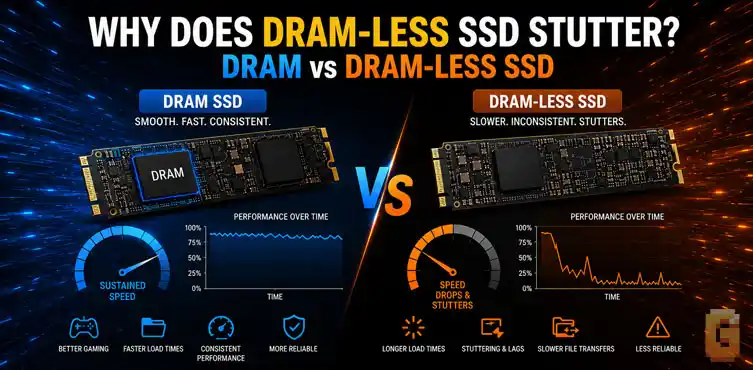

DRAM-less SSDs don’t automatically stutter, but they can become noticeably less responsive during heavy workloads like large Steam downloads, Windows updates, or sustained file transfers. A DRAM-equipped TLC SSD generally delivers more consistent performance, while DRAM-less and QLC drives are better suited to budget or secondary storage roles.
Choosing an SSD used to be simple. Buy the fastest one you could afford and move on. Today, it’s much more complicated.
You’ll see terms like DRAM cache, DRAM-less, Host Memory Buffer (HMB), TLC, and QLC everywhere. Marketing pages make every drive sound fast, yet many people still wonder why their PC occasionally freezes for a second during a large Steam download or why installing a game suddenly feels sluggish.
That’s exactly where the question “why does DRAM-less SSD stutter” comes from.
The short answer is that DRAM isn’t just about peak speed. It’s about maintaining consistent performance when storage activity becomes heavy. Understanding that difference can save you from buying the wrong SSD for your workload.
The three biggest questions buyers have
Before diving into the technical details, let’s identify the concerns most buyers actually have.
- Will a DRAM-less SSD cause stuttering or slowdowns during gaming or downloads?
- Is paying extra for a DRAM SSD actually worth it?
- Should I choose TLC or QLC NAND for long-term use?
This guide answers each of those questions in plain terms.
What is a DRAM cache on an SSD?
A DRAM cache is onboard memory that stores the SSD’s mapping information, often called the Flash Translation Layer (FTL). Instead of constantly reading mapping data from NAND flash, the controller can retrieve it much faster from dedicated DRAM.
The result isn’t just higher benchmark numbers. It also helps maintain consistent responsiveness during demanding workloads.
Think of DRAM as a very fast notebook sitting beside the SSD controller. Instead of searching through thousands or millions of storage locations every time data is requested, the controller can quickly reference that notebook.
This becomes especially valuable when many reads and writes happen simultaneously. Examples include:
- Installing large games
- Windows updates
- Steam game patches
- Moving hundreds of gigabytes between drives
- Running several applications while downloads continue in the background
Why does DRAM-less SSD stutter?
A DRAM-less SSD can stutter during sustained workloads because it has to manage mapping information differently, increasing controller overhead under heavy I/O. That doesn’t mean every DRAM-less SSD stutters all the time.
Modern controllers have improved dramatically, and many support Host Memory Buffer (HMB), which borrows a small amount of system RAM to help store mapping data.
However, HMB is not identical to dedicated onboard DRAM. When storage activity becomes intense, a DRAM-less drive has fewer resources available to keep everything organized efficiently.
Why Steam downloads are a common example
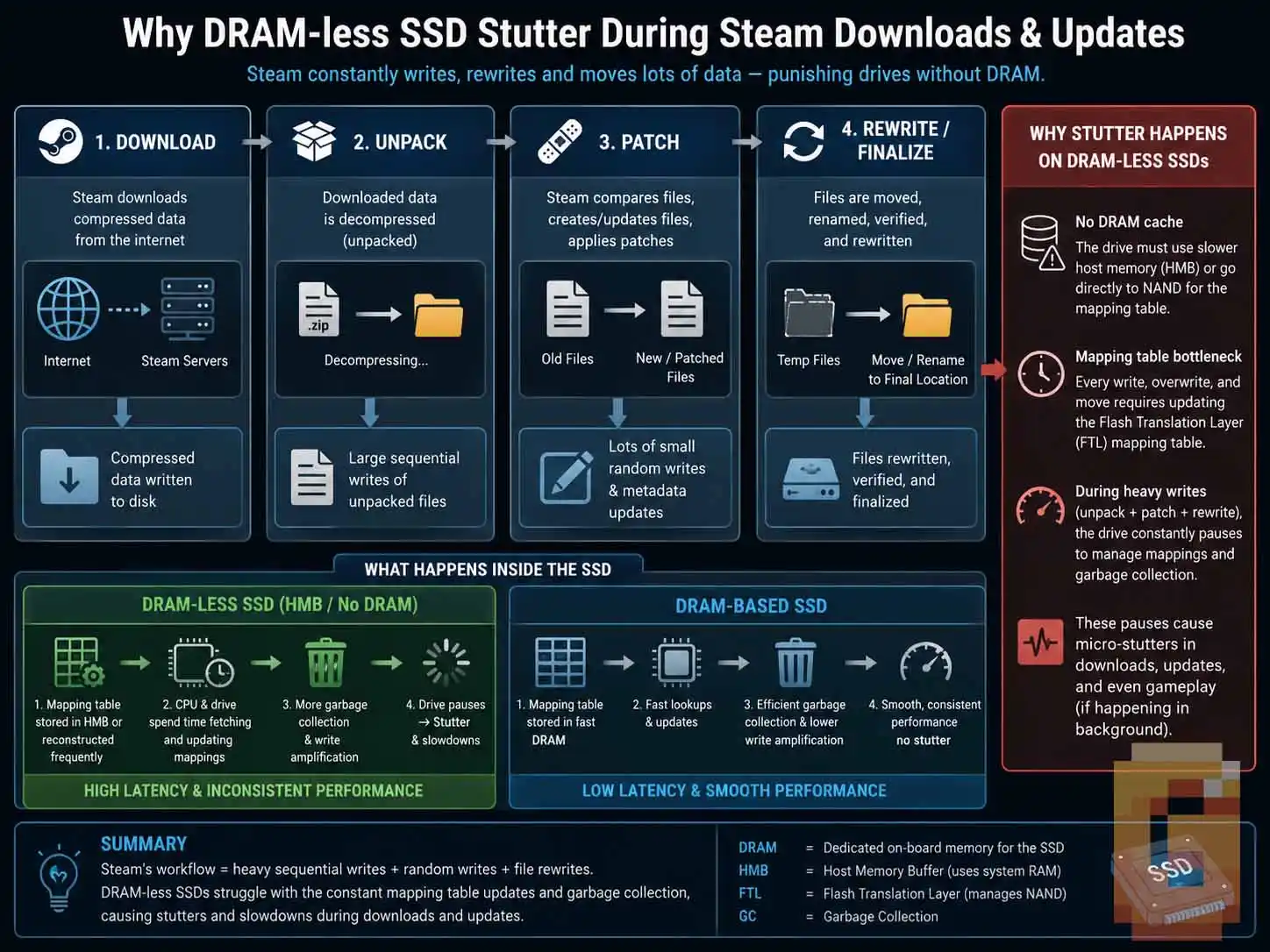
Steam updates are more demanding than many people realize. A large game update isn’t simply downloading files. Instead, Steam often:
- Downloads compressed data
- Reads existing game files
- Decompresses data
- Rewrites portions of the installation
- Verifies file integrity
This combination creates heavy random reads and writes. That is exactly the type of workload where a DRAM cache helps maintain smoother responsiveness. The effect isn’t usually lower frame rates while gaming. Instead, users may notice:
- Brief pauses during downloads
- Reduced responsiveness while multitasking
- Longer installation times once cache behavior changes
The exact behavior varies between SSD models, controllers, firmware, and workload.
Is DRAM-less SSD bad for gaming?
No. A DRAM-less SSD is not inherently bad for gaming. Most games spend far more time reading data than writing it. Once the game has finished installing, gameplay itself often feels nearly identical between comparable PCIe NVMe drives.
The bigger differences appear outside gameplay. You may notice them during:
- Installing games
- Updating games
- Copying large game libraries
- Recording gameplay while transferring files
- Running several storage-intensive tasks simultaneously
If your SSD’s primary job is storing games that rarely change, a quality DRAM-less TLC drive may be perfectly adequate.
The difference between DRAM and DRAM-less drives shows up most reliably in 1% low FPS, not average framerate. This effect is best documented when comparing storage tiers altogether — NVMe vs. SATA, or HDD vs. SSD — where streaming-heavy open-world games show measurably fewer micro-stutters on faster drives. Within NVMe specifically, DRAM-less drives follow the same logic on a smaller scale: anything that adds latency to random reads during asset streaming will show up in your 1% lows before it touches your average FPS. Average FPS will look fine. Your session won’t feel fine.
DRAM SSD vs DRAM-less SSD: Which should you buy?
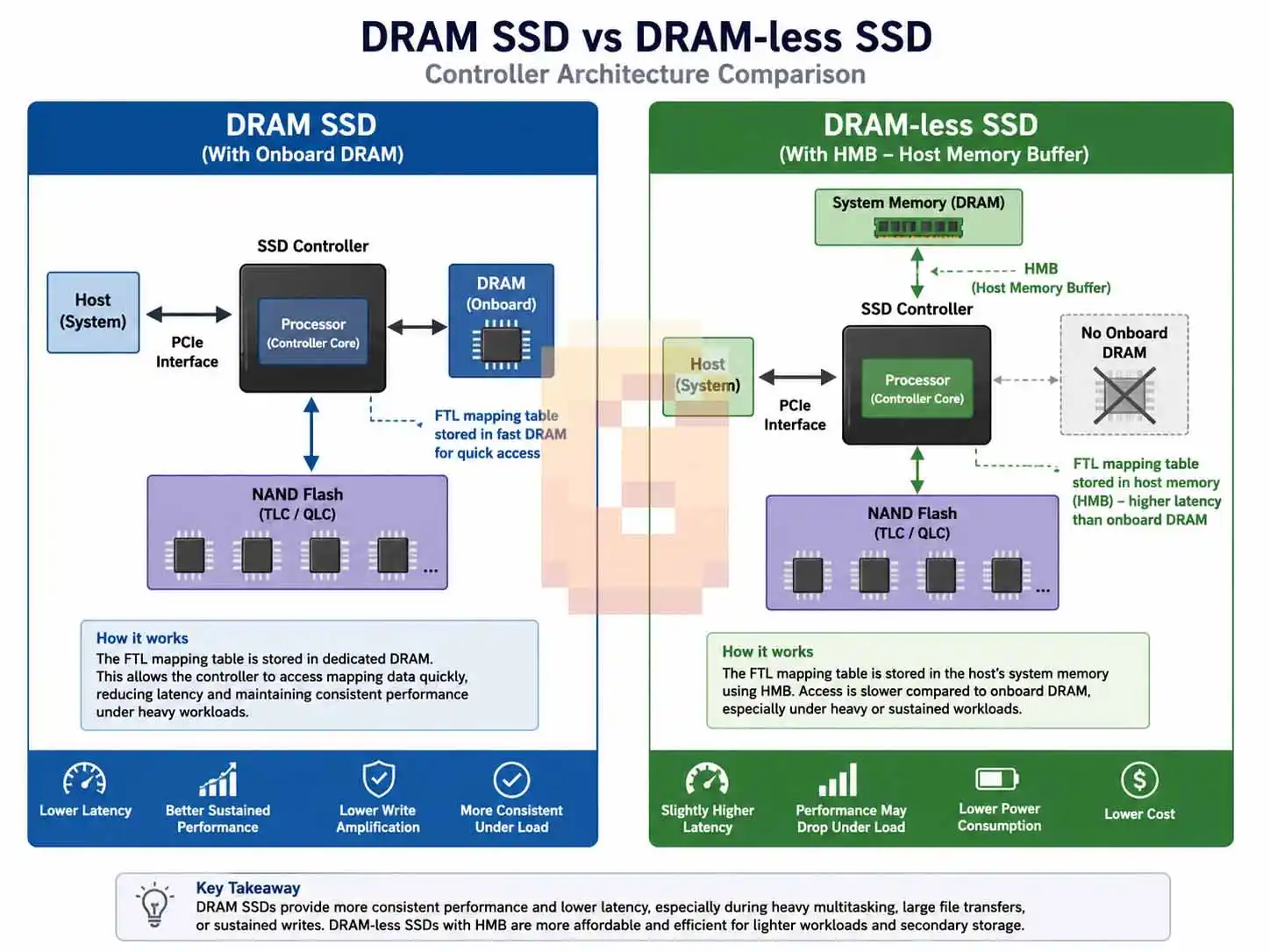
For most enthusiasts, a DRAM-equipped TLC SSD remains the best overall choice. Here’s why.
DRAM SSD advantages
- Better sustained write performance
- More consistent responsiveness
- Lower latency
- Reduced write amplification
- Better suited for heavy multitasking
- Ideal for operating systems and productivity workloads
DRAM-less SSD advantages
- Lower cost
- Lower power consumption
- Excellent value in many budget systems
- Often perfectly fine as secondary storage
The important point is that DRAM doesn’t magically make an SSD fast. A well-designed DRAM-less SSD can outperform an older DRAM-equipped drive thanks to controller improvements, firmware optimization, PCIe generation, and NAND quality. DRAM is one piece of the overall design—not the only one.
Worth knowing: the real dividing line is shifting from ‘DRAM vs. DRAM-less’ toward ‘TLC vs. QLC.’ Recent testing on drives like the WD Blue SN5100 (DRAM-less, QLC) shows it keeps pace with pricier DRAM+TLC drives in nearly every benchmark — the one place it falls behind is sustained write speed once its cache fills up, which is a NAND-type issue more than a DRAM one. If you’re choosing between two DRAM-less drives, what they’re built on (TLC vs. QLC) now matters more than whether either one has DRAM at all.
TLC vs QLC: Which NAND should you choose?
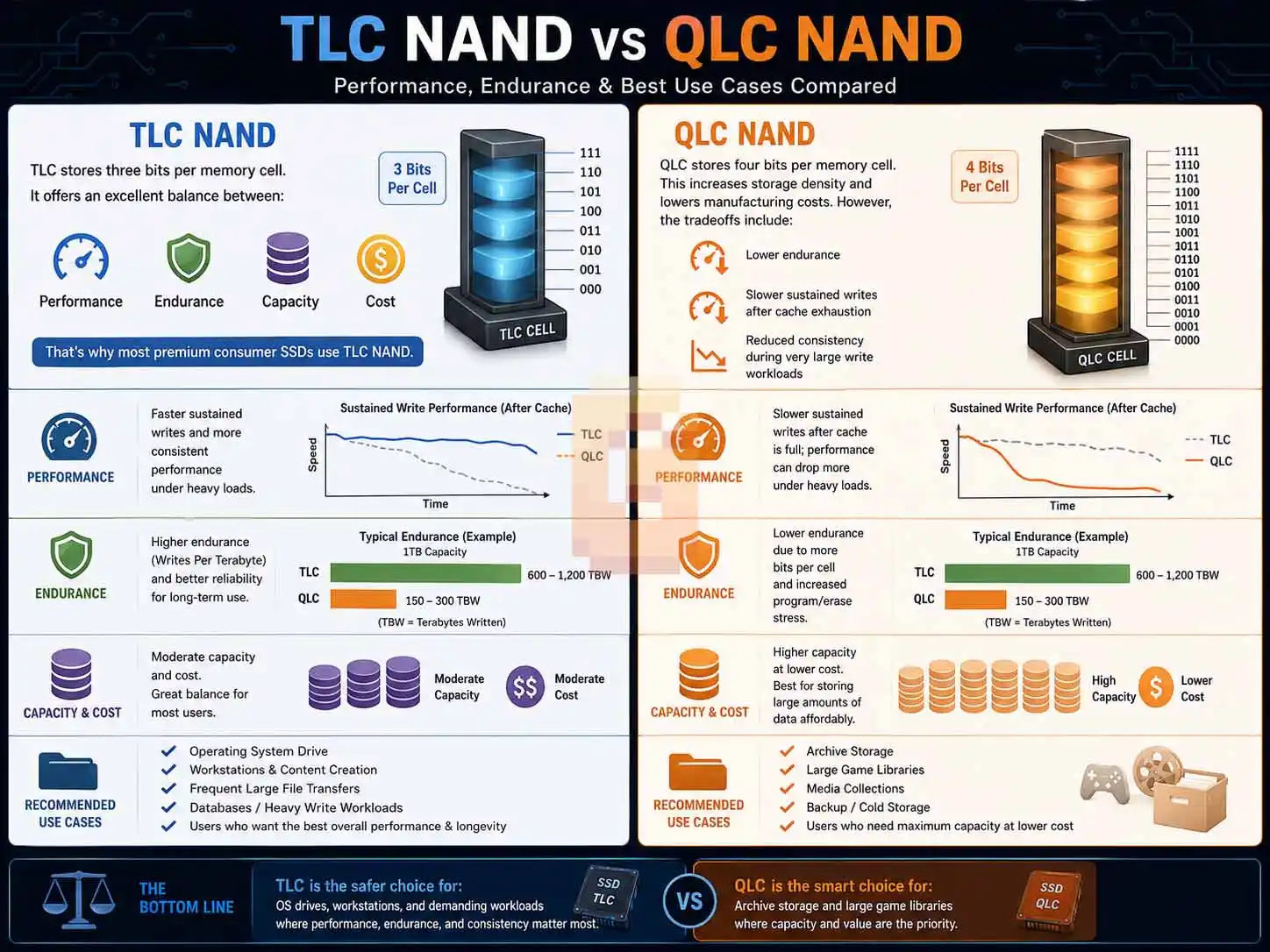
For most users, TLC is the better long-term choice. QLC isn’t automatically bad, but it serves a different purpose.
TLC NAND
TLC stores three bits per memory cell. It offers an excellent balance between:
- Performance
- Endurance
- Capacity
- Cost
That’s why most premium consumer SSDs use TLC NAND.
QLC NAND
QLC stores four bits per memory cell. This increases storage density and lowers manufacturing costs. However, the tradeoffs include:
- Lower endurance
- Slower sustained writes after cache exhaustion
- Reduced consistency during very large write workloads
For archive storage or large game libraries, QLC can still be an excellent value.
For an operating system drive or workstation, TLC is usually the safer choice.
Does QLC automatically mean a slow SSD?
No. Modern QLC SSDs can deliver excellent read performance and feel very fast during normal desktop use. Where they struggle is prolonged writing after their dynamic cache has been exhausted. Most users won’t encounter this every day. But creators working with massive video files, virtual machines, or continuous backups are more likely to notice the difference.
What about Host Memory Buffer (HMB)?
Host Memory Buffer is a clever solution that allows a DRAM-less SSD to use a small portion of your computer’s RAM for mapping information. It improves performance compared to having no cache assistance at all. However, it still isn’t a full replacement for dedicated DRAM because:
- Available memory is much smaller.
- Access characteristics differ.
- Performance consistency still depends heavily on workload.
HMB significantly narrows the gap, but it doesn’t eliminate it.
Which SSD configuration makes the most sense?
There isn’t one perfect answer. Instead, match the SSD to your workload.
Best choice for an operating system
TLC + DRAM. This combination delivers the most consistent long-term experience.
Best choice for gaming
TLC with or without DRAM can both work well. If you frequently install, uninstall, or update large games, DRAM remains preferable.
Best choice for content creation
TLC with DRAM. Large sustained writes benefit from the additional cache.
Best choice for inexpensive bulk storage
QLC, especially if the data changes infrequently.
Buying priorities that matter more than DRAM
It’s easy to become obsessed with one specification. In reality, consider the whole package. A good SSD depends on:
- Controller quality
- Firmware maturity
- NAND type
- PCIe generation
- Thermal design
- Warranty
- Endurance rating
DRAM should be evaluated alongside those factors rather than in isolation.
Key Takeaways
A DRAM-less SSD can become less responsive during heavy storage workloads because it lacks dedicated onboard memory for mapping data. Modern HMB technology reduces the impact but does not completely replace DRAM.
TLC NAND generally offers a better balance of endurance, sustained performance, and long-term value than QLC NAND. QLC is best suited for high-capacity storage where write-heavy workloads are uncommon.
For an operating system drive, a TLC SSD with onboard DRAM remains the most consistently responsive option for most users.
Still Stuttering After Upgrading Your SSD?
Storage is one piece of the puzzle. If you’ve already moved to a DRAM-backed SSD and unexplained stutters are still showing up under sustained load, your CPU’s power delivery is the next thing worth checking. Poorly cooled VRMs throttle silently under sustained all-core loads — same symptom, completely different cause.
Frequently Asked Questions
Does a DRAM-less SSD always stutter?
No. Most DRAM-less SSDs perform well during everyday use. Slowdowns are more likely during sustained, storage-intensive workloads.
Is TLC better than QLC?
Yes, for most users. TLC generally provides better endurance and more consistent sustained performance than QLC.
Is DRAM important for gaming?
Usually not during gameplay itself. DRAM is more beneficial during installs, updates, and heavy multitasking.
Can Host Memory Buffer replace DRAM?
No. HMB helps improve DRAM-less SSD performance but does not fully match the consistency of dedicated onboard DRAM.
Should I avoid QLC SSDs?
No. QLC SSDs are excellent for affordable, high-capacity storage when workloads are mostly read-focused rather than write-intensive.
Conclusion
If you’re wondering why does DRAM-less SSD stutter, the answer isn’t that every DRAM-less drive is flawed. The issue is consistency under heavy workloads.
For operating systems, productivity, and demanding multitasking, a TLC SSD with DRAM remains the safest recommendation. If you’re building a budget PC or simply need affordable game or media storage, a quality DRAM-less or QLC SSD can still be an excellent choice when used appropriately.
The best SSD isn’t determined by a single specification. Look at the controller, firmware, NAND type, endurance, warranty, and intended workload together before making your decision.