

How To Fix the ERR_CONNECTION_RESET Error?

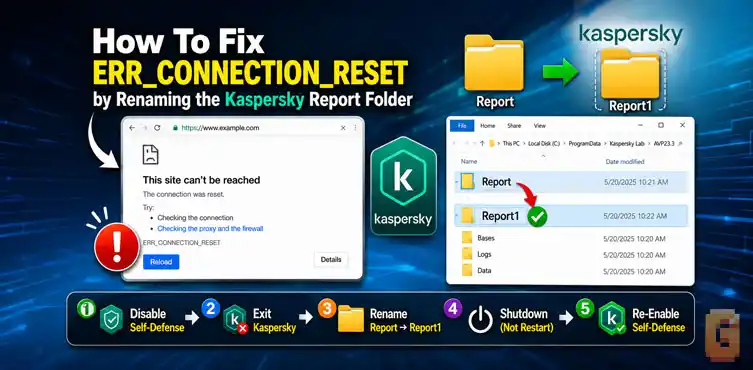

If you’re getting the ERR_CONNECTION_RESET error and you’re using Kaspersky, the issue may be caused by a corrupted Report folder. Disabling Self-Defense, renaming the Report folder, shutting down the PC completely, and then starting Kaspersky again can restore normal web access.
The ERR_CONNECTION_RESET error means the connection between your browser and a website was unexpectedly interrupted. While many things can cause it, Kaspersky users may encounter this problem because of an issue with the product’s Report folder.
If common fixes haven’t helped, the method below may solve the problem.
What Causes the ERR_CONNECTION_RESET Error?
The ERR_CONNECTION_RESET error happens when something interrupts network communication. In some cases, security software can interfere with web traffic and trigger the problem.
Common causes include:
- Antivirus software conflicts
- Corrupted application files
- Browser cache problems
- Network configuration issues
- VPN or proxy settings
- DNS problems
If you’re using Kaspersky and the problem appeared unexpectedly, the Report folder issue is worth checking.
How To Fix the ERR_CONNECTION_RESET Error in Kaspersky?
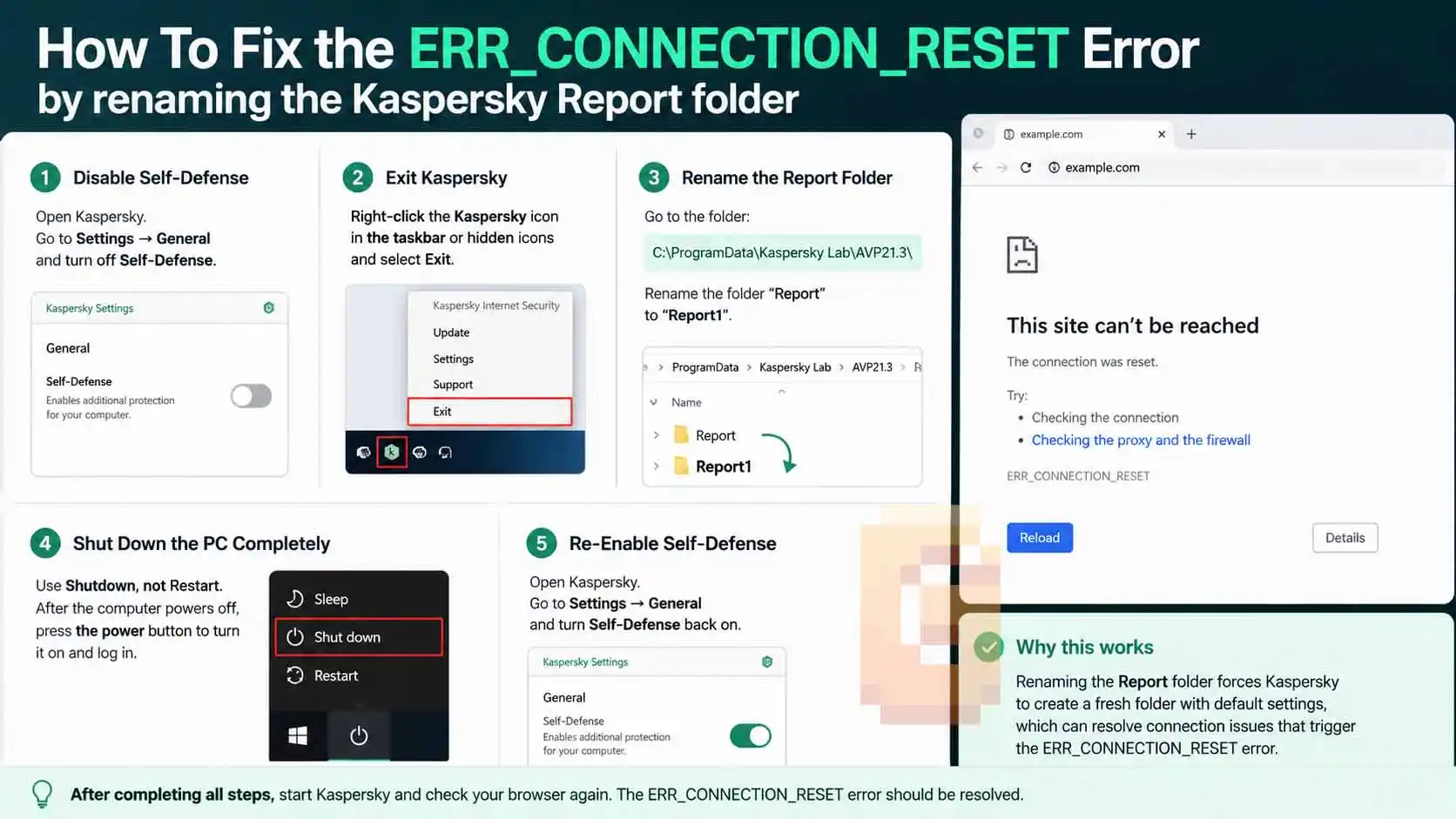
Yes, there is a workaround that has resolved this problem for some Kaspersky users. The process involves rebuilding the Report folder.
Follow these steps carefully.
Step 1: Disable Self-Defense
Open Kaspersky.
Go to:
Settings → General
Self-Defense.
Step 2: Exit Kaspersky Completely
Close the main window.
Then:
- Right-click the icon.
- Exit.
Make sure the application is completely closed.
Step 3: Rename the Report Folder
Open File Explorer and navigate to:
C:\ProgramData\Kaspersky Lab\AVP21.3\
Locate the folder named:
Report
Rename it to:
Report1
This forces Kaspersky to create a new Report folder.
Step 4: Shut Down the PC Completely
This step is important.
Shutdown, not Restart.
After the computer powers off completely:
- Press the power button.
- Log back into Windows.
- Start Kaspersky again.
Step 5: Re-Enable Self-Defense
Go back to:
Settings → General
Turn Self-Defense back on. Then test your browser again and see if the ERR_CONNECTION_RESET error is gone. Once Self-Defense is re-enabled, do a full shutdown again and cold boot rather than a restart — the difference matters for service reloads on Windows 11.
Is This Fix Safe?
Yes, renaming the Report folder does not remove your protection settings or uninstall Kaspersky. It simply causes the software to create a fresh Report directory.
However, this guide specifically addresses a Kaspersky-related cause of ERR_CONNECTION_RESET. Other causes may require different solutions.
What If the ERR_CONNECTION_RESET Error Still Appears?
If the issue remains, other network-related causes should be investigated.
Check Browser Cache
Try:
- Clearing browser cache and cookies.
- Testing another browser.
- Opening the site in private mode.
Reset Network Settings
You can also:
- Flush DNS.
- Reset Winsock.
- Disable VPNs or proxies temporarily.
- Test another network connection.
Can antivirus software cause ERR_CONNECTION_RESET?
Yes. Antivirus software can sometimes interfere with HTTPS traffic or network filtering, which may result in connection reset errors.
This is one of the more common software-related causes of the problem.
Why does the Report folder affect Kaspersky?
A corrupted or problematic Report folder can cause unexpected behavior within the application. Renaming it allows Kaspersky to generate a fresh folder structure. If Kaspersky is also interfering with Microsoft Office, it can trigger the c2r64.dll error — the same Self-Defense mechanism is usually the culprit.
Quick Summary
The ERR_CONNECTION_RESET error on systems running Kaspersky can sometimes be fixed by disabling Self-Defense, closing Kaspersky, renaming the Report folder located under C:\ProgramData\Kaspersky Lab\AVP21.3\ performing a full shutdown, and then re-enabling Self-Defense.
Restarting the computer may not be sufficient. A complete shutdown followed by powering the machine back on is part of the procedure.
This solution targets a Kaspersky-specific cause of ERR_CONNECTION_RESET and may not apply to all cases.
FAQ
Why am I getting ERR_CONNECTION_RESET on every website?
The error means the connection was interrupted. Browser settings, antivirus software, DNS issues, or network problems can all cause it.
Can Kaspersky cause ERR_CONNECTION_RESET?
Yes. Kaspersky’s network filtering components can sometimes contribute to the error, especially if internal files become corrupted.
Should I restart or shut down the computer?
A complete shutdown is recommended.
Will renaming the Report folder delete my settings?
No. Renaming the folder only causes Kaspersky to create a new Report directory.
Where is the Kaspersky Report folder located?
It is located at:
C:\ProgramData\Kaspersky Lab\AVP21.3\
The folder name may vary depending on your Kaspersky version.
Conclusion
If you’ve tried browser resets, DNS changes, and other common fixes without success, a Kaspersky-related issue may be responsible for the problem.
Here’s a quick recap:
- Disable Kaspersky Self-Defense.
- Exit Kaspersky completely.
- Report folder to Report1.
- Perform a full Shutdown, not a restart.
- Start Windows and Kaspersky again.
- Re-enable Self-Defense.
- Check whether the ERR_CONNECTION_RESET error has disappeared.
If the problem persists, continue with broader network troubleshooting or consult Kaspersky support. You can also explore our related Windows and browser troubleshooting guides for more solutions.
References
- Kaspersky Support — https://forum.kaspersky.com/topic/kaspersky-breaking-google-chrome-help-34941/
- Microsoft Windows Networking Documentation — https://learn.microsoft.com/en-us/windows-server/networking/
- Google Chrome Help — https://support.google.com/chrome/thread/286397843/err-connection-reset-in-chrome?hl=en

This clear step-by-step guide finally resolved my ERR_CONNECTION_RESET error! Detailed explanation about renaming the Kaspersky Report folder gave me the confidence to try it, and the warning about using Shutdown instead of Restart was a lifesaver. Thank you for saving me days of frustration!