Best MacBook Battery Charge Limit: 80% or 100%?

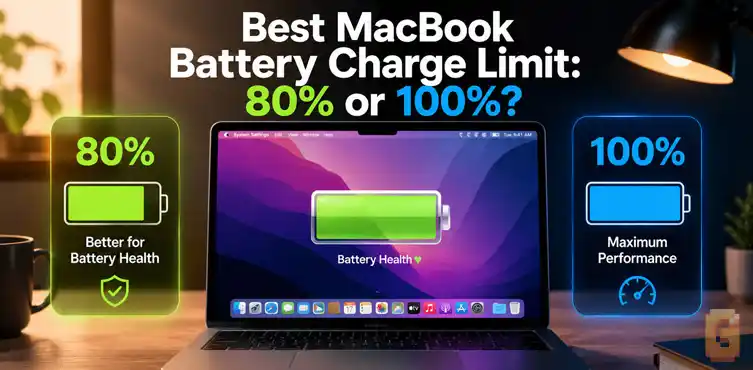

For the best MacBook battery charge limit, set the built-in Charge Limit to 90% or 95% for everyday use. Stopping manually at 98% is better than always going to 100%, but Apple’s tools work smarter. This simple change helps keep your battery healthier for years.
Best MacBook Battery Charge Limit 80% or 100% for Your MacBook
The best MacBook battery charge limit 80% or 100% question comes up constantly. One reader recently asked whether stopping the charge at 98% or waiting until it hits 100% is better for long-term battery health.
Lithium-ion batteries don’t love sitting at full voltage for extended periods. That’s the heart of the issue.
Why the best MacBook battery charge limit matters
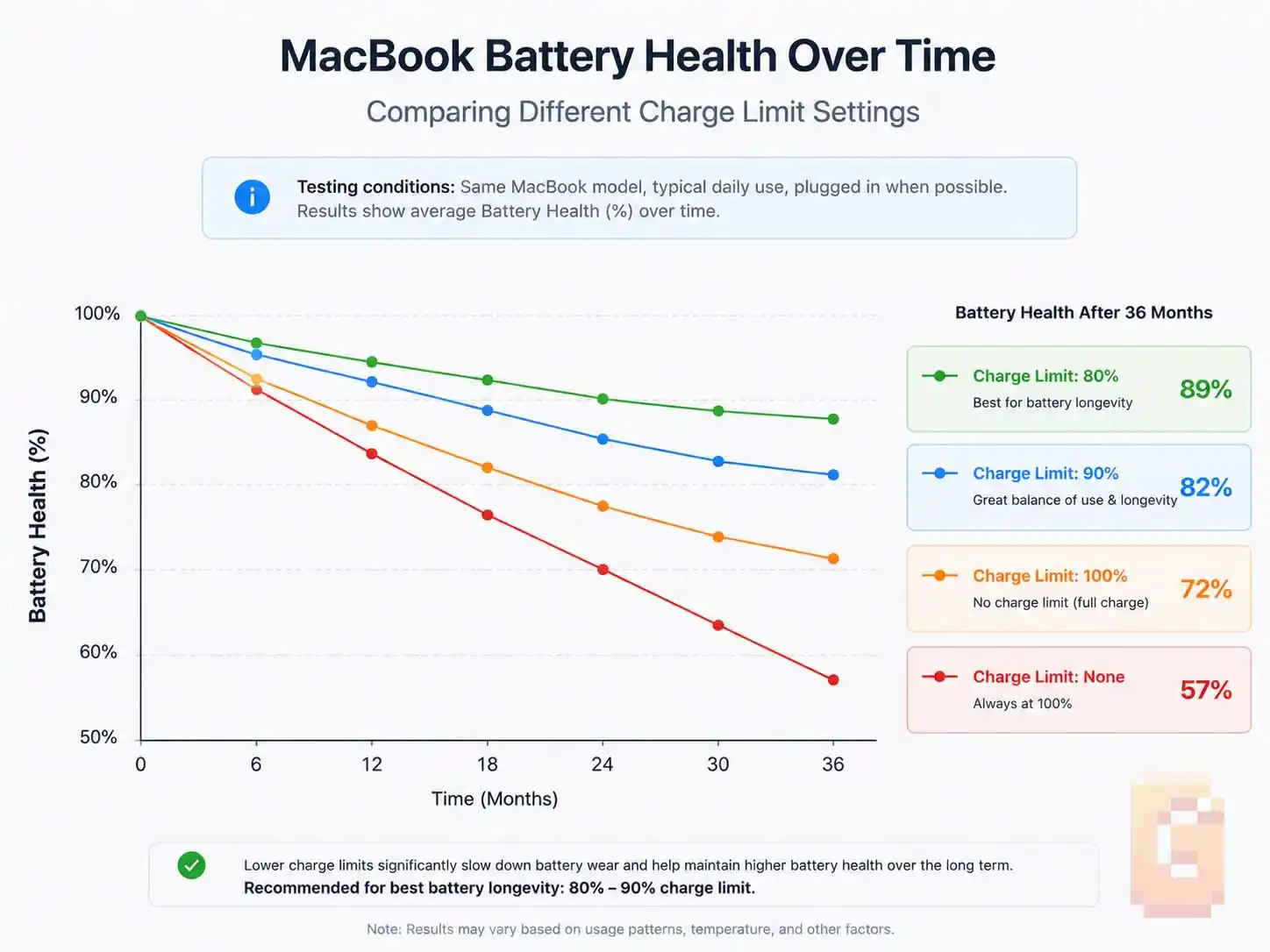
High state of charge adds extra stress on the battery cells. This speeds up natural aging over months and years. Even small reductions in time spent at 100% can make a meaningful difference.
Apple has added excellent controls in recent macOS versions that make this easy to manage.
What should you actually choose — 80%, 90%, or 100%?
It depends on how you use your MacBook. That’s the practical answer most owners need.
If your MacBook stays plugged in at a desk most of the time, a lower limit works great. If you travel often and need maximum runtime, a higher setting makes more sense.
Understanding Apple’s Two Main Battery Features
Apple provides Optimized Battery Charging and the newer Charge Limit feature. Many people confuse the two.
Optimized Battery Charging learns your habits. It keeps the battery around 80% most of the time and only tops it off to 100% shortly before you usually unplug. It has been available for years and runs automatically. This same feature keeps working quietly in the background whether your MacBook is awake or asleep — our guide on whether you should shut down your MacBook covers how sleep mode and charging behavior fit together.
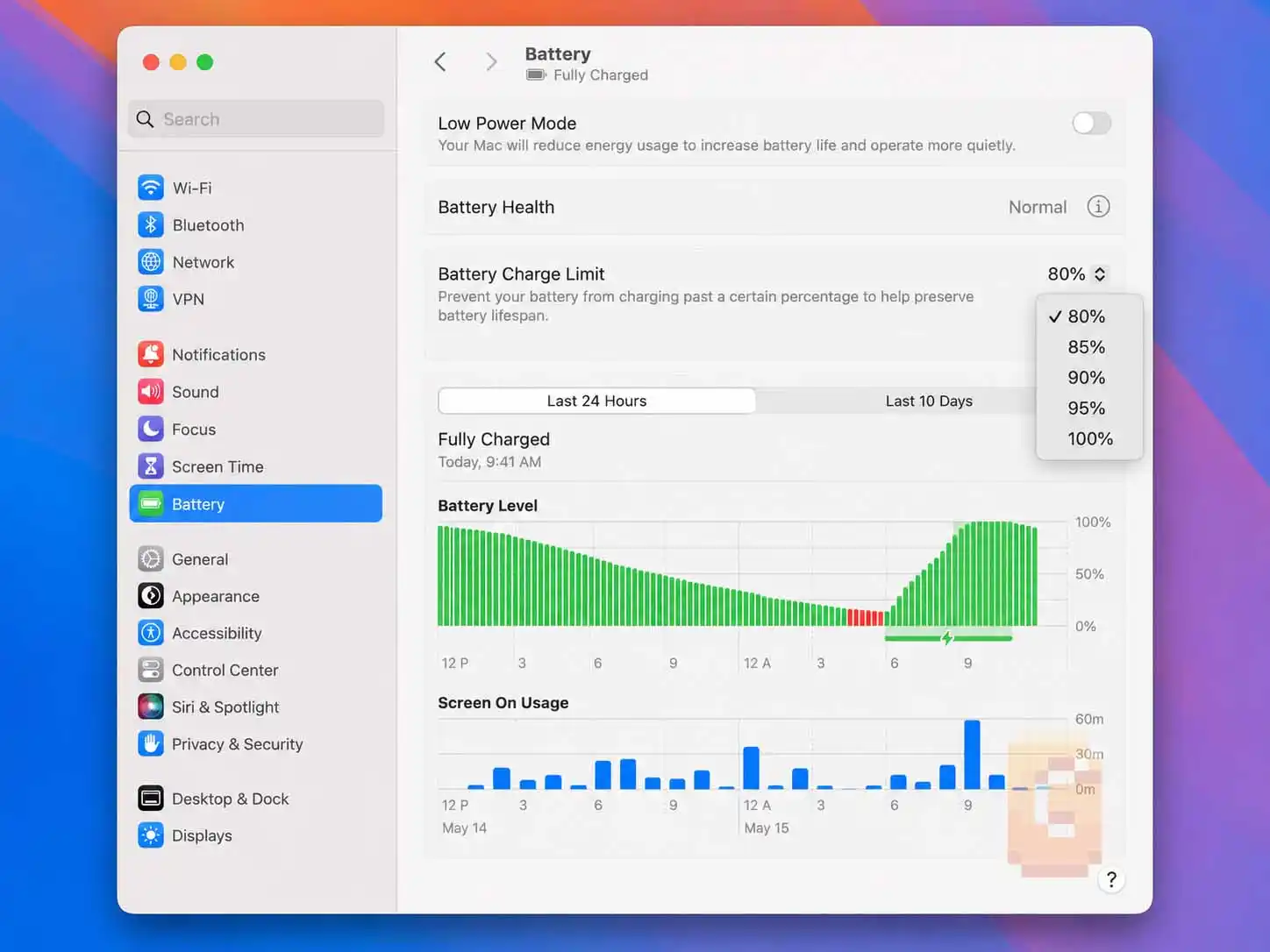
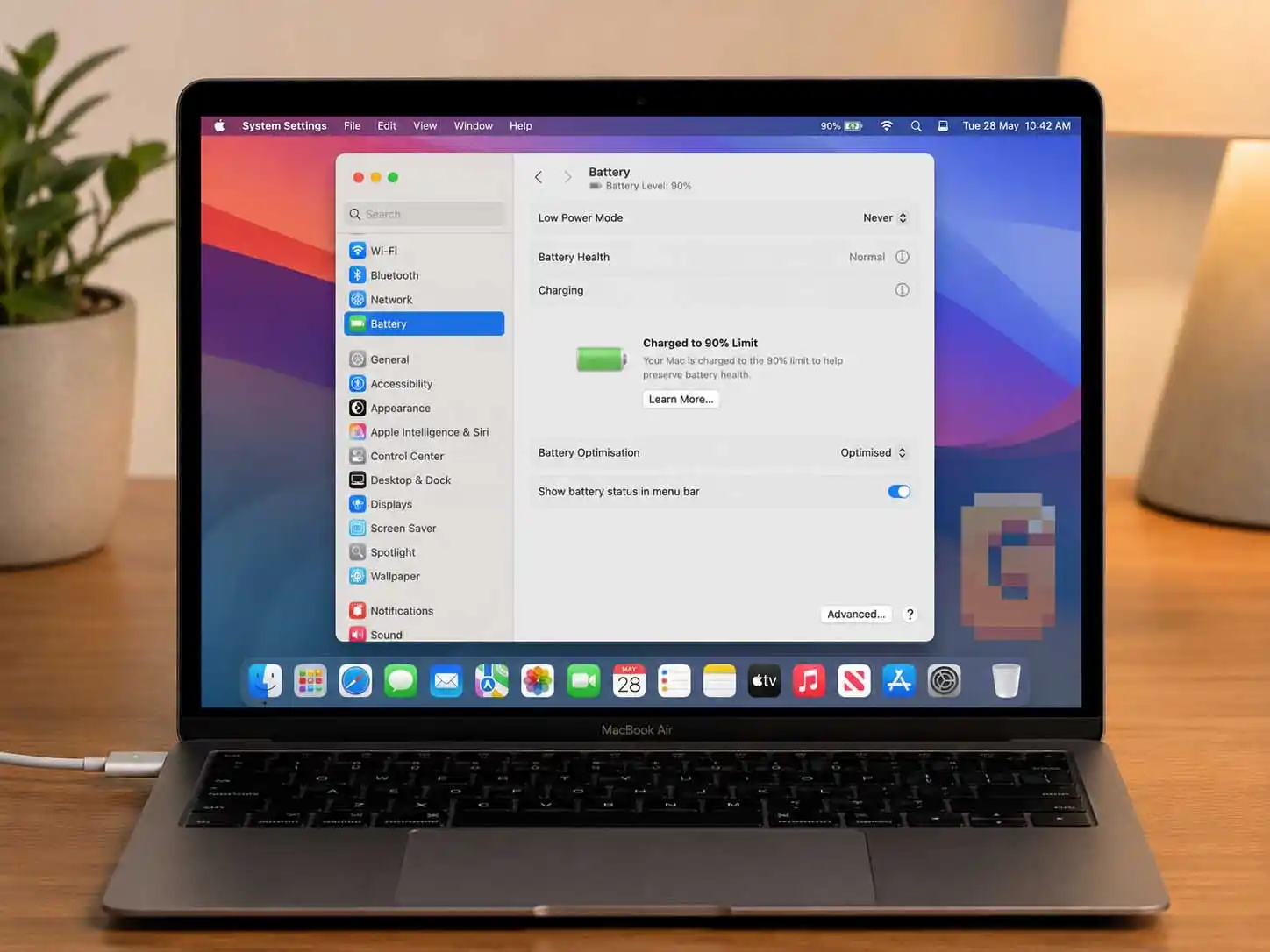
The newer Charge Limit is a hard cap. You can choose 80%, 85%, 90%, 95%, or 100%. The MacBook stops charging near your selected level. Your Mac will charge to within a few percentage points of your chosen limit, then stop. If the battery drops more than 5% below the limit while still plugged in, it’ll resume charging back up to the limit.
Charge Limit requires a Mac with Apple silicon (M1 or later) running macOS Tahoe 26.4 or newer. If you’re on an Intel Mac or an older macOS version, you’ll only have Optimized Battery Charging available — the manual habits below still apply to you.
How to set the best MacBook battery charge limit
Go to System Settings > Battery. Click the info button next to Charging and pick your preferred limit. It’s that simple.
This gives you consistent control without daily effort.
Stopping at 98% manually versus using the built-in limit
Manually unplugging around 98% reduces stress slightly compared to staying at 100%. However, it requires constant attention. The system-level Charge Limit is cleaner and more reliable. That’s why most people prefer it for long-term battery health.
One thing worth knowing: even with a Charge Limit set, your Mac will occasionally charge all the way to 100% anyway. This is intentional — Apple’s system does this periodically to keep its battery percentage readings accurate. If you see your Mac exceed your limit once in a while, that’s expected behavior, not a malfunction.
Which limit fits your lifestyle best
- Desk-heavy users (mostly plugged in
Set the best MacBook battery charge limit to 80% or 85%. You still get plenty of power for normal tasks while keeping the battery under less stress. Heat stays lower too. - Travel and mobile users
Choose 90% or 95%. This balance gives good all-day battery life while reducing full-charge wear. Only go to 100% when you really need the extra runtime. - Occasional full charges
Letting it reach 100% once every month or two for calibration is perfectly fine. Just don’t make full 100% the everyday habit.
Good news: you don’t need to manage this manually anymore. Apple’s system handles calibration automatically now, on both Optimized Battery Charging and Charge Limit.
Extra tips that work well with any charge limit
Keep your MacBook cool while charging. Heat causes more battery damage than high charge levels alone. Avoid using it on soft surfaces like beds or couches during long sessions.
Run a partial cycle from around 20% back up occasionally. This helps the battery percentage reading stay accurate.
You can safely leave your MacBook plugged in 24/7 once you’ve chosen the right limit. The system handles the rest intelligently.
FAQ
Is 80% the absolute best MacBook battery charge limit for maximum lifespan?
Yes, 80% usually provides the biggest longevity benefit for mostly stationary use, though runtime is reduced.
Does manually stopping at 98% still help on older macOS versions?
It offers a small improvement over constant 100%, but updating to use the official Charge Limit is recommended.
Can I use Optimized Battery Charging together with the hard Charge Limit?
Yes. They complement each other. Optimized adds smart timing on top of your chosen hard cap.
Will setting a lower limit hurt my MacBook’s resale value?
No. Healthier battery capacity numbers usually support better resale value over time.
How often should I adjust my best MacBook battery charge limit?
Change it based on your routine. Many users keep one setting for home use and raise it before travel.
Recap: Getting the best MacBook battery charge limit right
– Pick 80-85% for mostly plugged-in desk use.
– Choose 90-95% when you need more flexibility for travel.
– Enable Optimized Battery Charging for added intelligence.
– Keep the MacBook cool and do occasional calibration cycles.
Setting the best MacBook battery charge limit 80% or 100% properly is one of the easiest ways to protect your MacBook’s battery. Open System Settings right now and choose your limit. You’ll likely see slower battery health decline over the coming years.
While you’re in System Settings tuning your charging behavior, Charge Limit isn’t the only Apple default worth a second look. Hot Corners is another feature that ships tuned for convenience over your actual workflow — if your cursor keeps accidentally triggering Mission Control or revealing your desktop, our guide on how to disable Hot Corners on a Mac walks through the fix in under a minute.
What charge limit are you planning to try? Let me know in the comments.
References / Footnotes
Apple Support: About Optimized Battery Charging and Charge Limit on Mac – https://support.apple.com/en-us/102338
MacRumors: Apple Brings Charge Limit Feature to macOS – https://www.macrumors.com/2026/02/16/mac-charge-limit-macos-tahoe-26-4/
Battery University: How to Charge and When to Charge? – https://www.batteryuniversity.com/article/bu-415-how-to-charge-and-when-to-charge