How to Disable Spellcheck in Steam Chat


You can easily disable spellcheck in your main Steam chat window by heading into the Friends & Chat settings menu. For Steam’s internal browser and the in-game overlay, you will need alternative approaches since older configuration methods no longer function. This guide covers every working solution to turn off those red squiggly lines across the entire client.
Knowing how to disable spellcheck in Steam Chat is essential if those red corrective underlines drive you crazy while messaging your gaming buddies. Valve’s desktop client has gone through several interface revamps over the years, scattering text correction settings across different menus.
Many users find themselves frustrated because an old trick they read about online suddenly stops working after a client update. This comprehensive guide walks you through the exact steps for the main chat window, the built-in web browser, and the advanced overlay settings. We will also address why certain legacy fixes no longer function so you do not waste your time.
Disable Spellcheck in Steam Chat (Friends & Chat Window)
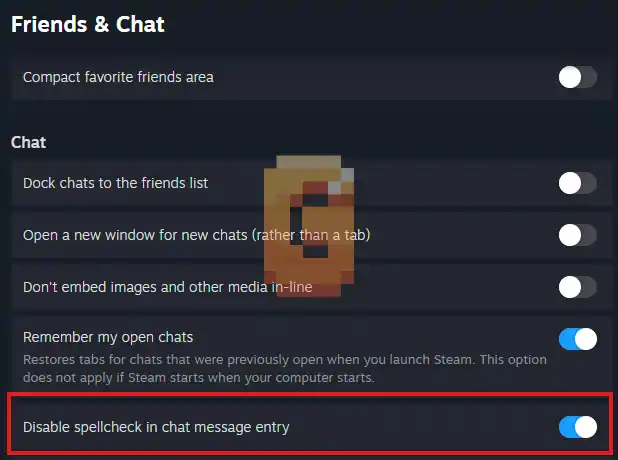
You can quickly turn off spellcheck inside Steam’s primary messaging interface by navigating directly to the Friends & Chat section of the main settings menu. This instantly removes those red underlines from your daily direct messages and group chats.
To switch it off, click on Steam in the top-left corner of the desktop client and select Settings. From the centralized settings window, choose the Friends & Chat tab on the left sidebar. Look down the list of options until you find the toggle labelled disable spellcheck in chat message entry, then flip it off.
Alternatively, you can open your floating Friends & Chat window from the bottom right corner of the client, click the gear icon to open preferences, and find that exact same toggle. This specific setting only governs your standard chat boxes and will not clear out spelling markers inside Steam’s community market or store pages.
Disable Spellcheck in Steam’s Internal Browser
You can turn off spelling corrections inside Steam’s integrated web browser by navigating directly through the hidden Chromium browser settings panel. Older guides used to point people toward editing raw configuration files, but a modern browser-level solution makes things much easier.
Open any page in Steam’s built-in browser — for example, navigate to the Steam Community by clicking Community in the top menu bar, then type chrome://settings/languages in the address bar. From here, you can switch off the spell check toggle entirely without messing with hidden files. This solves the issue for community hubs, profile comments, and discussion boards all at once.
Disable Spellcheck in the Steam Overlay Browser (Advanced)
You can strip spelling underlines from the in-game overlay browser by using an advanced file replacement workaround. This method targets the stubborn dictionary files that refuse to respect standard client preferences.
Navigate to %localappdata%\Steam\htmlcache\Dictionaries\ — paste that path directly into Windows Explorer’s address bar. You will find a file named something like en-US-3-0.bdic depending on your language. Exit Steam completely before replacing it. Create a blank text file, rename it to match the .bdic filename exactly, and place it in the same directory. Then right-click the file → Properties → Security → Edit permissions so that your user account has Read access only, preventing Steam from overwriting it on restart.
Because this involves altering installation directories, make sure you back up your files before making any permanent changes.
Why the UserPrefs.json Method No Longer Works
You should avoid old forum tutorials that instruct you to edit the UserPrefs.json file because that specific workaround was broken by a Steam client update. A Steam Community discussion thread from October 2025 confirmed that Steam no longer respects changes made to UserPrefs.json for the internal browser after this update.
Many players waste hours hunting down this text file in their app data directories trying to paste snippet codes that used to turn off text highlighting. Valve updated how the desktop client handles web components and local storage parameters, rendering those legacy file adjustments completely useless.
Sticking to the current chat menu toggles and internal browser settings ensures your changes actually take effect. Always double-check the date of any gaming forum guide you follow to avoid running into outdated software instructions.
Frequently Asked Questions
Does turning off chat spellcheck affect games?
No, disabling chat corrections has zero impact on video game performance or in-game text parsers. It only affects text input fields inside the Steam client application itself.
Why do red lines keep showing up in community forums?
Community market and forum pages run on Steam’s internal browser framework rather than the standard chat client. You must disable browser-level text checking separately to clear them.
Is editing dictionary files safe for my account?
Replacing local dictionary files does not violate terms of service, but it can be overwritten whenever Steam pushes a major client patch. You might need to reapply the fix after updates.
Can I choose a different language instead of turning it off?
Yes, both the main chat settings and the internal browser options let you select alternative languages or add custom dictionary exceptions if you prefer translation help over full removal.
Conclusion
Managing text corrections doesn’t have to be a headache once you know where the real settings live. To quickly recap: use the Friends & Chat gear icon for standard messages, tweak the browser language menu for community pages, and rely on dictionary file workarounds only if you need total overlay coverage.
Knowing how to disable spellcheck in Steam Chat keeps your typing clean and distraction-free across the entire platform. Take a moment to adjust your settings now, and enjoy a totally clutter-free chatting experience while gaming.
References
Steam Community discussion thread — UserPrefs.json no longer works: https://steamcommunity.com/discussions/forum/1/669472753009655285/
Steam Community Guide — Customize/disable spellcheck: https://steamcommunity.com/sharedfiles/filedetails/?id=3600107201