What determines AirDrop transfer speed? Learn key factors

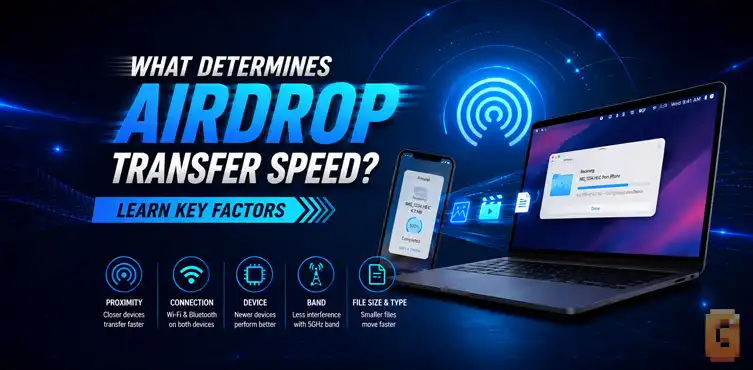

AirDrop transfer speed is determined mainly by the direct peer-to-peer Wi-Fi connection between the two Apple devices, their wireless hardware, distance, interference, processing, and the data being transferred. Importantly, AirDrop needs the Wi-Fi radio turned on, but the devices do not need to be connected to a Wi-Fi network.
AirDrop feels like a simple file-sharing feature, but several things determine how quickly a file actually moves from one Apple device to another. So, what determines AirDrop transfer speed? The biggest factor is the direct wireless connection that AirDrop creates between the devices. Wi-Fi hardware, signal conditions, distance, interference, processing, and the size and characteristics of the files all matter.
There’s also an important detail that is often misunderstood: AirDrop requires Wi-Fi to be turned on, but it does not require the devices to be connected to a Wi-Fi network. Apple’s own security documentation explains that AirDrop uses Bluetooth Low Energy for discovery and Apple’s peer-to-peer Wi-Fi technology for the actual connection. That Wi-Fi connection is made directly between the devices without using an internet connection or wireless access point. That distinction is the key to understanding AirDrop performance.
The Core Factors: Distance, File Size, and Device Compatibility
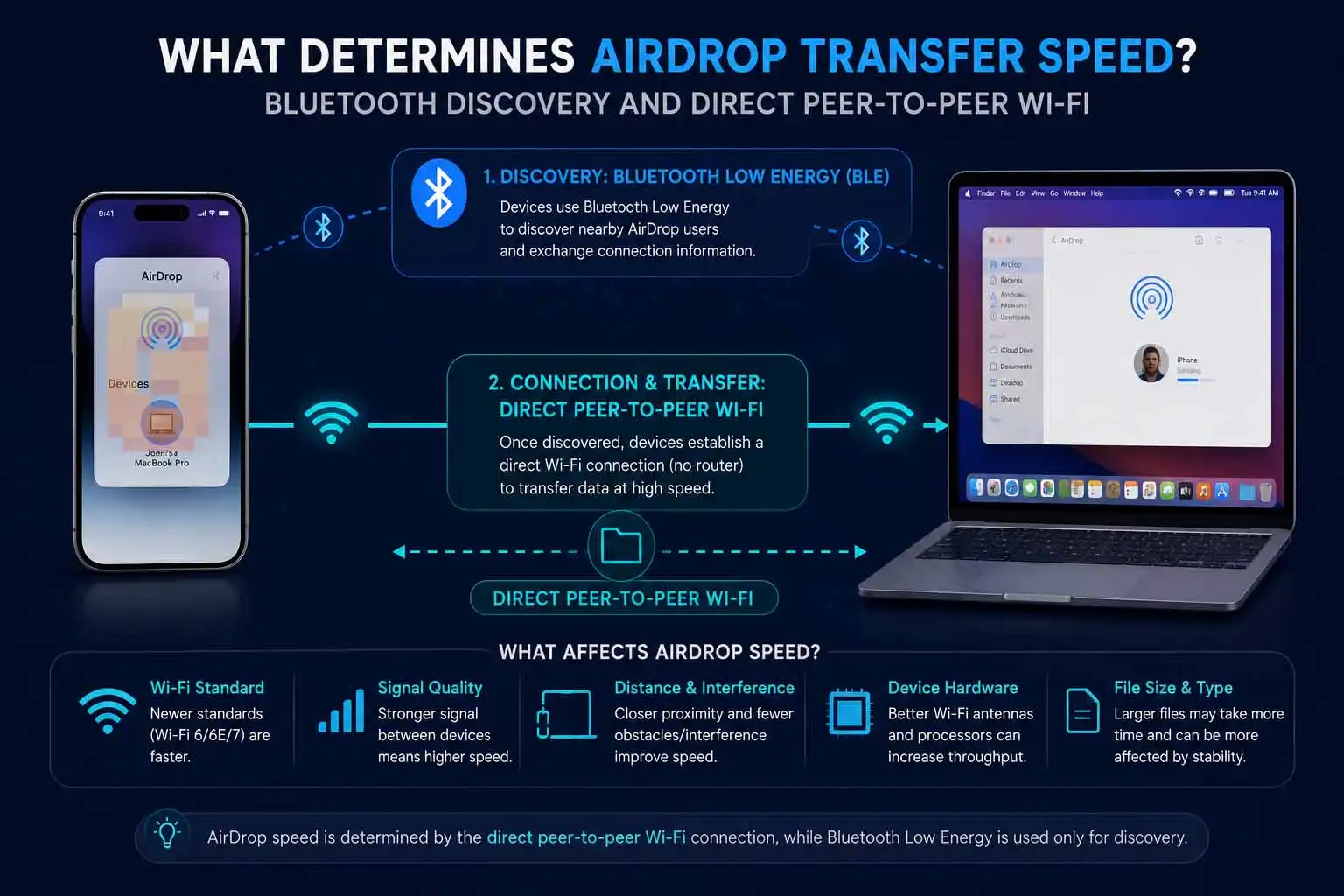
AirDrop speed depends on the quality and capability of the direct wireless connection, while distance, interference, device hardware, and the amount of data being transferred determine how quickly that connection can actually move your files.
Distance matters
Keeping the two devices close together is one of the simplest ways to give AirDrop the best possible conditions. Apple currently recommends keeping AirDrop devices within 10 meters (30 feet) of each other. That doesn’t mean AirDrop suddenly becomes slow at exactly 10 meters.
Wireless performance is affected continuously by signal strength, obstacles, interference, antenna orientation, and the surrounding radio environment. For a large video transfer, placing the iPhone and Mac next to each other removes unnecessary variables.
Device hardware matters
The two devices involved in an AirDrop transfer don’t necessarily have identical wireless capabilities. A newer Mac may have newer Wi-Fi hardware than an older iPhone. That doesn’t mean the newer Mac can force the entire connection to operate at its maximum theoretical capability.
The wireless connection involves both endpoints. For example; iPhone 11 and a MacBook Air M5. The MacBook Air M5 is the newer machine, but the iPhone 11 is still one half of the wireless link. When evaluating AirDrop performance, you therefore shouldn’t look only at the Mac’s Wi-Fi specifications.
File size affects transfer time
A larger file naturally takes longer to transfer than a smaller file at the same sustained data rate. But the video’s resolution or frame rate isn’t itself a direct measurement of AirDrop speed. For example, a 400 MB 4K60 video is ultimately a 400 MB file that needs to be transferred. The fact that it was recorded at 4K and 60 frames per second doesn’t mean AirDrop transfers it at a special “4K60 speed.”
File size, sustained throughput, and transfer overhead are much more relevant.
Why Does AirDrop Use Direct Wi-Fi Instead of Your Router?
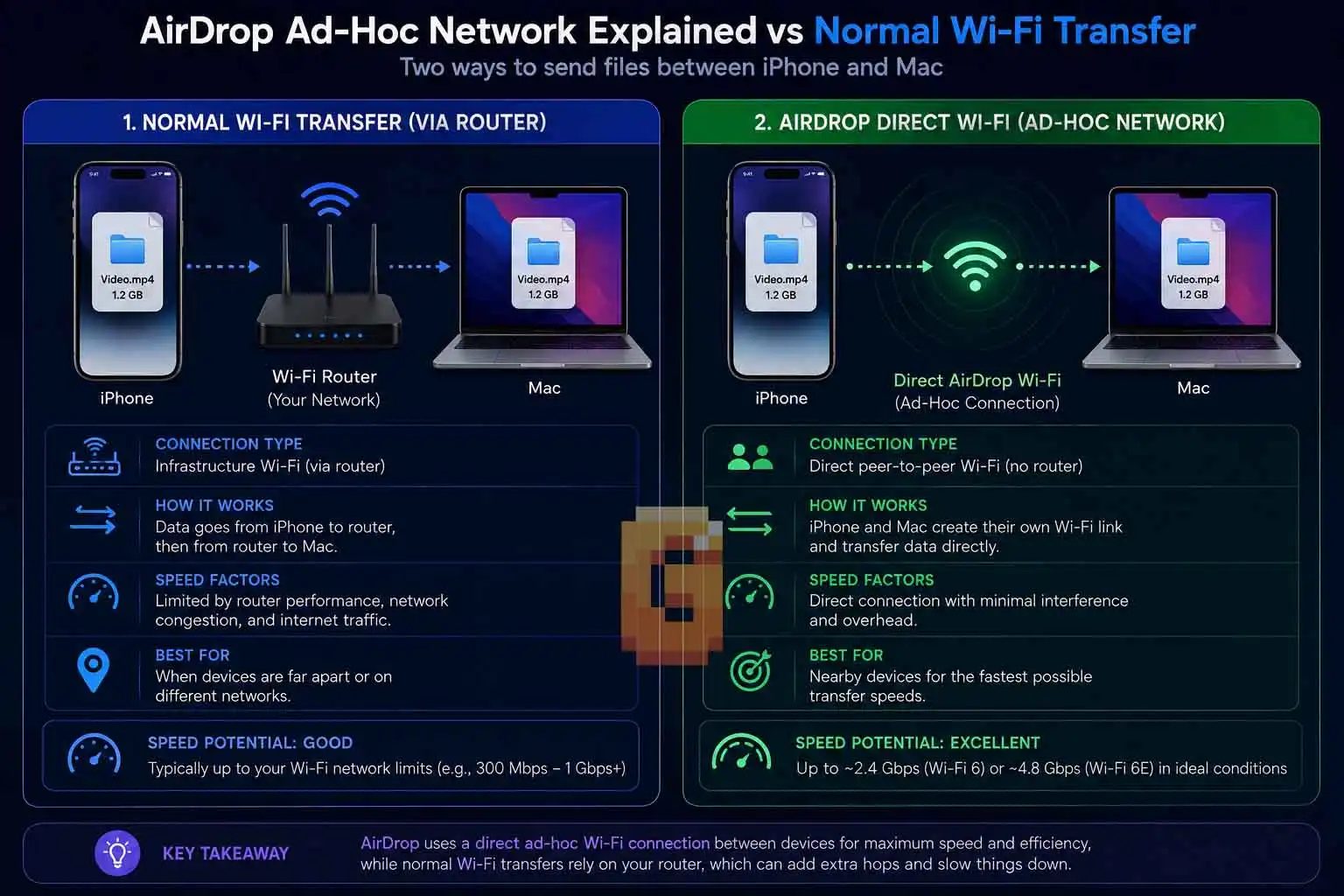
AirDrop doesn’t normally send your file through your home router. It establishes a direct peer-to-peer Wi-Fi connection between the Apple devices. Apple explicitly says that AirDrop uses its peer-to-peer Wi-Fi technology and that the Wi-Fi radio communicates directly between devices without using an internet connection or wireless access point.
AirDrop ad-hoc network explained
This is one of the most important technical details behind AirDrop. When you hear “AirDrop uses Wi-Fi,” it is easy to imagine something like this:
iPhone → Wi-Fi router → Mac
But AirDrop’s actual architecture is different:
iPhone → direct peer-to-peer Wi-Fi → Mac
Bluetooth Low Energy helps the devices discover each other. Once the devices establish the AirDrop connection, peer-to-peer Wi-Fi is used for the communication and transfer. Apple’s documentation describes this process explicitly. The result is that you can use AirDrop even in a location where there is no existing Wi-Fi network at all.
You don’t have to find a router, join a hotspot, or connect both devices to the same wireless network. The Wi-Fi radios simply need to be available so the devices can establish their direct connection.
Why phone-to-phone Wi-Fi is different from router Wi-Fi
It’s tempting to compare AirDrop with the advertised speed of a modern Wi-Fi router, but that isn’t an apples-to-apples comparison.
A dedicated wireless access point can have different antenna configurations, radio characteristics, power constraints, channel configurations, and networking capabilities from a smartphone. AirDrop’s peer-to-peer connection has its own characteristics. Therefore, seeing a router advertise multi-gigabit Wi-Fi doesn’t mean you should expect AirDrop to transfer files at multi-gigabit speeds.
The specific band each device favors also plays a role in connection quality — our breakdown of the best WiFi band for gaming covers why 5GHz and 6GHz generally outperform 2.4GHz for exactly the kind of congestion-sensitive wireless link AirDrop depends on.
The theoretical wireless link rate is also not the same thing as application-level file-transfer throughput. Protocol overhead, encryption, device processing, radio conditions, and storage operations all exist between the physical wireless link and the final file-copy speed.
Does Turning Off WiFi Make AirDrop Faster?
Disconnecting from a Wi-Fi network does not prevent AirDrop from working, as long as the Wi-Fi radio remains enabled. Whether doing so makes AirDrop faster is a separate question that requires testing. This is where AirDrop advice often gets confusing.
There are actually three different states that can easily be mixed together:
- Wi-Fi radio enabled and connected to a network
- Wi-Fi radio enabled but not connected to a network
- Wi-Fi radio disabled
Those are not equivalent.
AirDrop doesn’t require a Wi-Fi network
Apple’s own documentation confirms that AirDrop uses direct peer-to-peer Wi-Fi rather than requiring a wireless access point. Apple’s Support documentation also says that both devices need Wi-Fi and Bluetooth turned on. It does not say that both devices must be connected to the same Wi-Fi network.
There is even an Apple Community answer that states the distinction explicitly: you don’t need to be connected to a Wi-Fi network to use AirDrop; Wi-Fi needs to be turned on, but a network connection isn’t required. A more recent Apple Community discussion makes the same point: AirDrop can be used when there isn’t an existing Wi-Fi network available, provided Wi-Fi and Bluetooth are enabled on the devices.
So the correct statement is:
AirDrop needs Wi-Fi enabled, not a Wi-Fi network connection.
Why disconnecting from your network could be interesting
This is where things become genuinely interesting. If AirDrop creates its own direct Wi-Fi connection, there is a reasonable question to ask:
Could disconnecting from an existing Wi-Fi network change AirDrop’s performance?
It’s a perfectly legitimate thing to test. For example, you could compare:
- Test A: Both devices connected to the same Wi-Fi network.
- Test B: Both devices have Wi-Fi enabled but aren’t connected to an existing Wi-Fi network.
Then transfer the same large file under otherwise identical conditions. If Test B is faster, you have an empirical result for that particular device combination and environment. But we shouldn’t automatically turn that into a universal claim that “disconnecting Wi-Fi makes AirDrop faster.”
The mechanism is documented. The speed improvement is not established simply by the mechanism. That’s an important distinction.
Don’t turn Wi-Fi off completely
There is also a difference between disconnecting from a Wi-Fi network and disabling Wi-Fi itself. Apple’s current documentation says both devices should have Wi-Fi and Bluetooth turned on for AirDrop. Apple also explains that certain controls can disconnect an iPhone from Wi-Fi networks while leaving Wi-Fi available for features such as AirDrop.
So the useful experiment is network connection versus no network connection, not “Wi-Fi radio on versus Wi-Fi radio completely off.” That distinction fixes one of the most common explanations of this topic.
How Fast Is AirDrop, Really?
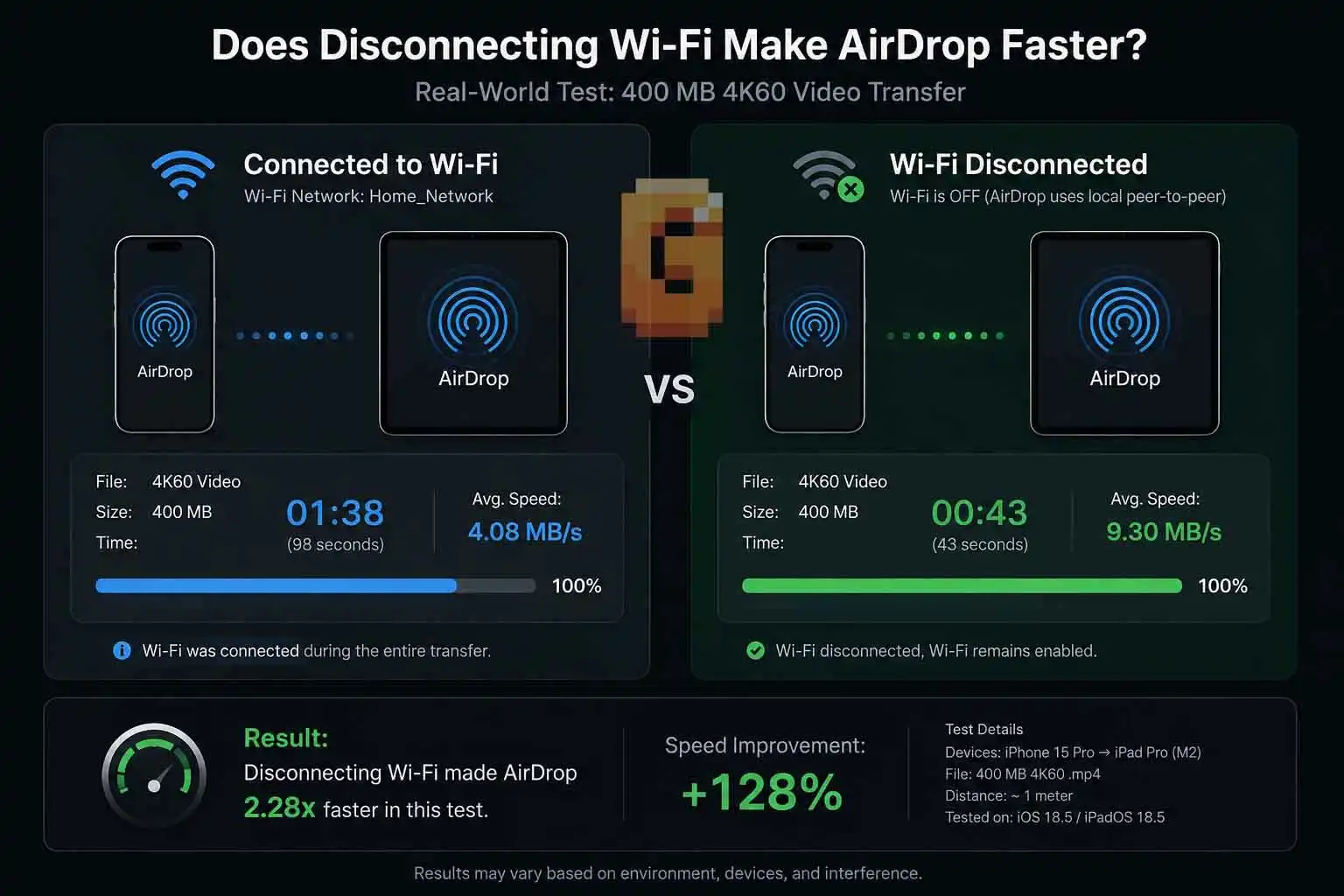
There is no single universal AirDrop speed that applies to every Apple device combination. This is one area where older sources and forum discussions can be misleading. A number measured on one generation of iPhone and Mac under one set of conditions shouldn’t automatically be treated as the expected speed for every modern AirDrop transfer.
How fast is AirDrop GB per minute?
The most reliable way to think about AirDrop speed is in terms of measured sustained throughput rather than a universal number.
For example, if a transfer sustained 25 MB/s, moving 1,000 MB would require approximately 40 seconds of raw data-transfer time. At 50 MB/s, the same 1,000 MB would require approximately 20 seconds. Those figures are mathematical examples, not claims about typical AirDrop performance.
Actual elapsed time can be different because the transfer process includes connection establishment, protocol overhead, encryption, file handling, and other operations. This is why an article claiming that AirDrop is always “X MB/s” should be treated cautiously unless it explains exactly how the number was measured.
Example: What about a 400 MB 4K60 video?
A 400 MB video provides a useful real-world example because it is large enough for sustained wireless performance to matter. If the transfer actually sustained 25 MB/s, the simple calculation would be:
400 MB ÷ 25 MB/s = 16 seconds
At 50 MB/s:
400 MB ÷ 50 MB/s = 8 seconds
Again, these are calculations rather than AirDrop benchmark results. The correct way to establish the real speed of your iPhone and MacBook would be to time an actual transfer and calculate: Transfer speed = file size ÷ elapsed transfer time
Ideally, you would repeat the test several times and compare the results. That would tell you far more about your particular setup than an old forum post quoting an unspecified AirDrop speed.
Why Is AirDrop Slow?
AirDrop can be slow because the direct wireless connection isn’t achieving a high sustained rate, because the devices are farther apart, because of interference, or because the devices themselves are limiting performance. Before blaming the AirDrop protocol, eliminate the easy variables.
Keep the devices close
Apple recommends keeping AirDrop devices within 10 meters of each other. For a large transfer, keeping them next to each other is the simplest approach.
Keep Wi-Fi and Bluetooth enabled
This is an actual AirDrop requirement. Apple’s current instructions tell users to have both Wi-Fi and Bluetooth turned on. Remember that this doesn’t mean you need to join a Wi-Fi network.
Disconnect Personal Hotspot
Apple specifically recommends disconnecting Personal Hotspot if it is enabled. That’s a much more defensible troubleshooting step than simply telling someone to disable Wi-Fi.
Consider VPN and local networking
Apple notes that a VPN configuration can interfere with local networking and some Continuity features. If AirDrop is behaving strangely, this is another variable worth checking. Don’t confuse theoretical Wi-Fi speed with file-transfer speed A Wi-Fi specification or negotiated PHY rate represents the wireless link’s physical-layer capability. It doesn’t mean an application can copy files at that exact rate.
The final transfer speed can be affected by multiple layers between the radio and the file system. This is why a real timed transfer is more useful than simply looking at the Wi-Fi specification of either device.
How to Actually Get the Fastest AirDrop Transfer
The fastest AirDrop setup is one that gives the direct peer-to-peer Wi-Fi connection the best possible conditions. Keep the devices close, leave Wi-Fi and Bluetooth enabled, disconnect Personal Hotspot, and avoid unnecessary variables while transferring a large file.
Apple specifically recommends Wi-Fi and Bluetooth being enabled, keeping the devices within 10 meters, and disconnecting Personal Hotspot if it is active.
Try the Wi-Fi-network experiment
If you’re interested in whether disconnecting from your normal Wi-Fi network helps, test it rather than assuming. Run the same transfer under two conditions:
- Condition 1: Both devices are connected to your normal Wi-Fi network.
- Condition 2: Both devices have Wi-Fi and Bluetooth enabled, but neither is connected to a Wi-Fi network.
Use the same file, keep the devices in the same positions, and repeat the test several times. That gives you an actual comparison. If Condition 2 consistently performs better, you’ve discovered something useful about your particular setup. If there is no meaningful difference, you’ve also learned something useful. Either way, the result is much stronger than repeating an unverified universal claim.
Use a large file for testing
A 400 MB 4K60 video is a reasonable example for a sustained-transfer test. A very small photo can complete so quickly that connection setup and other overhead dominate the measurement. A larger file gives the wireless link more time to settle into its sustained behavior.
AirDrop Speed: What Actually Determines It?
The short answer is that AirDrop speed is determined by the direct wireless link between the two devices, not simply by the speed of the Wi-Fi network you’re connected to. The most important factors are:
- Wireless hardware in both devices
- Direct Wi-Fi connection quality
- Distance between the devices
- Radio interference and environmental conditions
- Protocol and encryption overhead
- Device processing and storage performance
- The amount and characteristics of the data
- Software and operating-system behavior
And there is one particularly important clarification: AirDrop requires Wi-Fi to be enabled, but it does not require a Wi-Fi network connection. Apple explicitly documents that AirDrop uses peer-to-peer Wi-Fi directly between devices without a wireless access point. That means you can be somewhere with no router, no home network, and no internet connection and still use AirDrop.
The interesting unanswered question is not whether AirDrop can operate without a Wi-Fi network. It can.
The interesting question is whether disconnecting from an existing Wi-Fi network produces a measurable performance improvement on a particular device combination. That’s something worth testing rather than assuming.
Conclusion
What determines AirDrop transfer speed? Primarily the quality and capability of the direct peer-to-peer Wi-Fi connection, with both devices, distance, interference, processing, and file characteristics contributing to the final result.
The key takeaways are:
- AirDrop uses Bluetooth for discovery and peer-to-peer Wi-Fi for the actual connection.
- You do not need to be connected to a Wi-Fi network to use AirDrop.
- You do need Wi-Fi and Bluetooth enabled.
- A router’s advertised Wi-Fi speed isn’t an AirDrop speed rating.
- Both devices contribute to the performance ceiling.
- Disconnecting from an existing Wi-Fi network is a valid experiment.
- Whether it makes AirDrop faster should be established through testing, not assumed.
- A real timed transfer is more meaningful than a generic MB/s claim.
For an iPhone and MacBook, the best next step is to perform a controlled AirDrop test using your 400 MB 4K60 video, first while connected to your normal Wi-Fi network and then with the devices disconnected from that network while keeping Wi-Fi enabled. That would turn the interesting theory into an actual measurement for your hardware.
FAQ
Does AirDrop need to be connected to Wi-Fi?
No. AirDrop needs the Wi-Fi radio enabled, but the devices do not need to be connected to a Wi-Fi network. AirDrop creates a direct peer-to-peer Wi-Fi connection between compatible Apple devices.
Does turning off Wi-Fi make AirDrop faster?
No conclusion should be made from simply turning Wi-Fi off. AirDrop requires Wi-Fi to remain enabled. Disconnecting from an existing Wi-Fi network while leaving Wi-Fi enabled is a different experiment and can be tested separately.
Can AirDrop work without internet?
Yes. The direct AirDrop connection does not require an internet connection or wireless access point.
Why is my AirDrop slower than my router’s Wi-Fi?
Because AirDrop uses a direct device-to-device Wi-Fi connection rather than your normal router-based network. Your router’s advertised Wi-Fi rate therefore isn’t directly comparable to AirDrop’s real-world file-transfer speed.
Is a 400 MB 4K60 video a good AirDrop speed test?
Yes. A 400 MB video is large enough to evaluate sustained transfer performance. Record the elapsed time and calculate the approximate throughput rather than relying on a generic AirDrop speed figure.
References
Apple Support — AirDrop security
Apple Support — How to use AirDrop on iPhone and iPad
Apple Support — Use Bluetooth and Wi-Fi in Control Center
Apple Community — AirDrop without being connected to a Wi-Fi network