Does My GPU or Cable Support DSC? DSC Explained

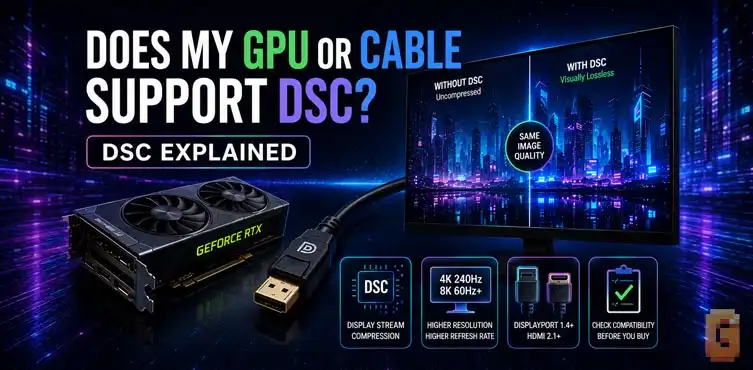

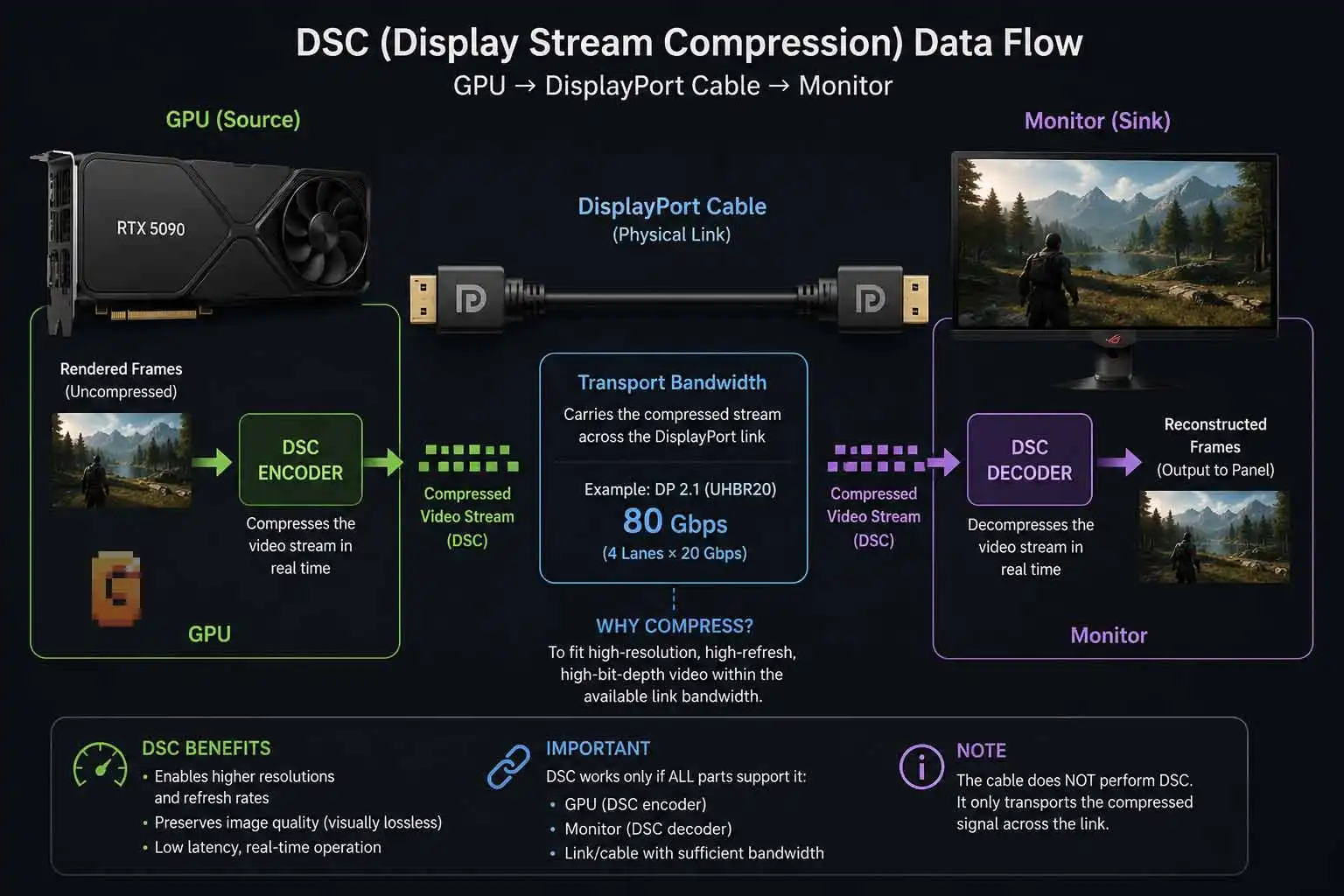
DSC, or Display Stream Compression, is a VESA-standard way of compressing a display signal so a connection can carry resolutions, refresh rates, and color depths that would otherwise exceed its raw bandwidth. To actually use DSC, the source GPU, display, and transport connection all have to cooperate; the cable itself does not encode DSC, but it must provide a reliable link with enough bandwidth. In some modern setups, such as a DisplayPort 2.1 UHBR20 GPU connected to a compatible 4K 240Hz monitor, DSC may not be necessary at all.
If you have ever searched does my gpu or cable support dsc, there is a good chance you were already dealing with a confusing display setup. Maybe your monitor has a DSC toggle. Maybe your graphics card advertises DisplayPort 2.1. Maybe you bought a high-speed DP cable and expected DSC to disappear automatically.
Then you look at your resolution and refresh-rate options and wonder what is actually happening. That confusion is understandable because DSC is not simply a feature you can attribute to one component. It sits between the graphics pipeline and the display connection. Whether it is actually used depends on the source, the display, the negotiated link, the available bandwidth, and the settings exposed by the monitor and driver.
For everything that happens on the graphics-pipeline side of that boundary — before the signal ever reaches DSC — our breakdown of how video game frames are rendered covers the steps from GPU draw calls to the frame buffer.
This article explains the important part without treating DSC as a mysterious checkbox. More importantly, it explains why two apparently similar systems can behave completely differently.
What DSC Actually Does
Display Stream Compression, or DSC, compresses the video stream before it travels across the display connection and decompresses it at the display. VESA designed DSC specifically for display interfaces, with an emphasis on low latency, low complexity, and visually lossless image quality.
The basic problem is simple. Modern monitors can generate an enormous amount of display data. A 4K display running at a very high refresh rate has to transmit millions of pixels repeatedly every second. Increasing color depth makes the stream larger again. At some point, the required data rate can exceed what the physical display link can carry.
DSC gives the system another option. Instead of increasing the number of physical lanes or replacing the entire interface, the source can compress the display stream before transmission. The display then reconstructs the image.
VESA describes DSC as a visually lossless compression technology and has subjected its compression standards to subjective image-quality testing. DSC is also designed to operate in real time rather than functioning like a conventional video file compression system. That distinction is important.
DSC is not like creating an H.264 or AV1 video file and sending that to your monitor. The display pipeline is still delivering a live desktop or game image. DSC operates as part of the display transport process. This is why DSC can be useful for high-refresh PC monitors. It can effectively make a limited-bandwidth connection capable of carrying display modes that would otherwise not fit.
DisplayPort 1.4 was the first DisplayPort version to incorporate DSC, and VESA specifically describes DSC as a way to extend resolution and display capabilities over existing transport bandwidth. That brings us to an important question.
Why DSC Needs Your GPU, Cable, and Monitor to All Agree
A DSC connection needs a compatible source and display, while the physical link must also provide the bandwidth and signal integrity required for the negotiated mode. The cable does not “encode DSC,” but it can absolutely become the bottleneck. This is one of the easiest parts of DSC to misunderstand.
People often say: “My monitor supports DSC.” 0r “My cable supports DSC.” Neither statement tells the whole story. A better way to think about it is as a chain.
The GPU is the source
The graphics card is responsible for producing the display stream. If the GPU does not provide the necessary DSC functionality for the connection and mode you are trying to use, the monitor cannot magically add it. The source side needs the appropriate display interface and DSC implementation. This is particularly important when comparing older and newer graphics cards.
A monitor can support DSC perfectly well while an older GPU may have a completely different DisplayPort capability. That can leave you with a lower maximum resolution or refresh rate.
The monitor is the sink
The monitor needs to understand the compressed stream and reconstruct it. This is why a DSC-capable GPU alone is not enough. The monitor’s scaler and display electronics have to support the relevant DSC implementation.
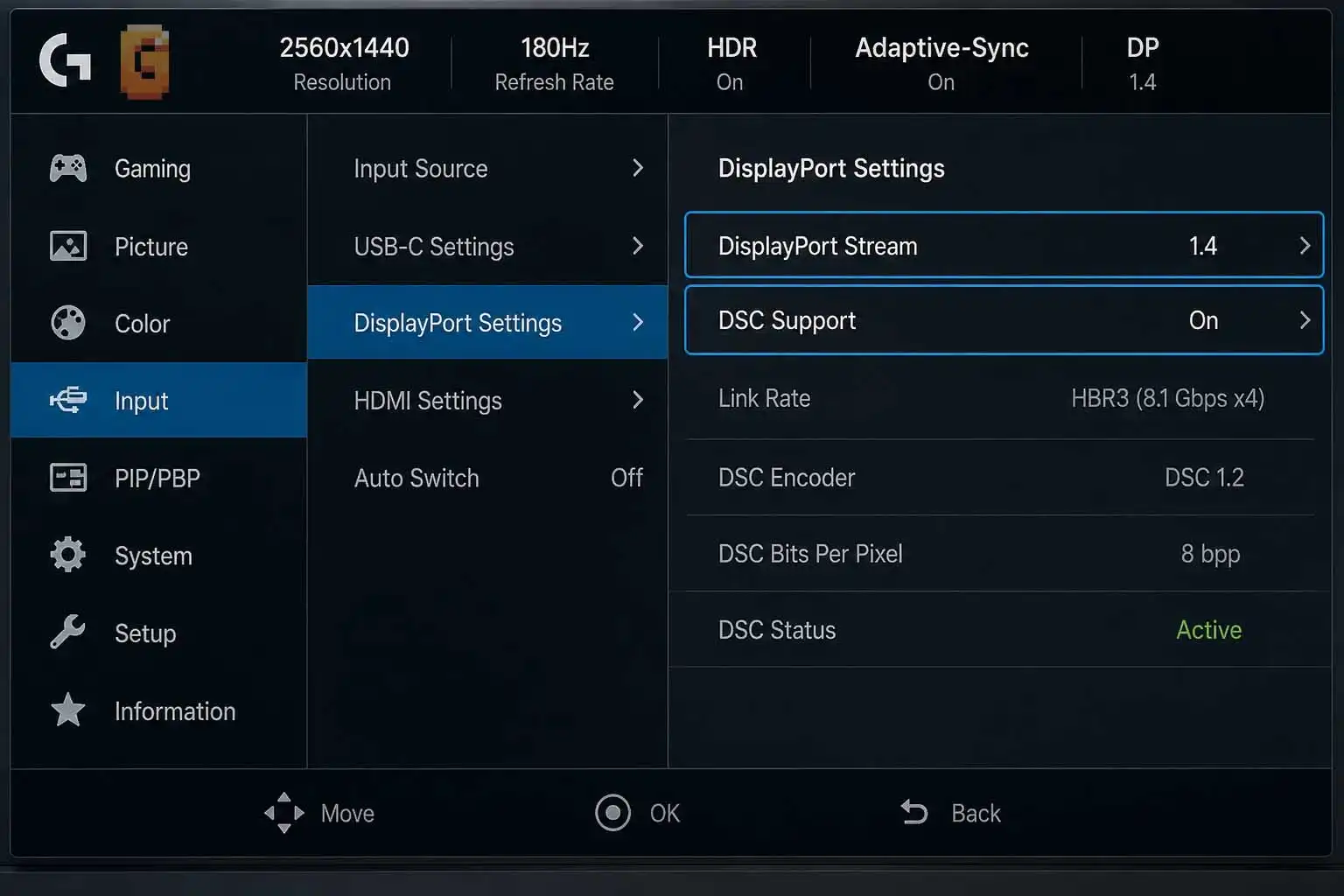
ASUS, for example, explicitly lists a DSC Support option in the PG27UCDM’s OSD and describes it as enabling or disabling Display Stream Compression. The same menu also provides a DisplayPort Stream selection for DP 1.2, DP 1.4, or DP 2.1 compatibility.
The cable is the transport path
Here is the important correction to the usual “three things support DSC” explanation:
- The cable does not itself perform DSC compression.
- The cable carries the electrical DisplayPort signal.
- What matters is whether the cable can reliably sustain the negotiated DisplayPort link rate.
That becomes especially important with modern UHBR connections.
| Component | Role in the DSC Chain | What Determines Support | If This Link Is Weak |
|---|---|---|---|
| GPU (source) | Encodes the compressed video stream before sending it | The specific display controller silicon and DisplayPort/HDMI generation — not just how new the card is | DSC may grey out, or you’re capped to a lower refresh rate even with a capable monitor and cable |
| Cable (transport) | Carries whatever signal the GPU sends — performs no compression or decompression itself | Certified bandwidth rating (e.g., VESA DP80 for UHBR20), not a “DSC” label on the packaging | The link can’t sustain the negotiated rate — dropped signal, forced lower resolution/refresh, or connection failure |
| Monitor (sink) | Decodes the compressed stream back into a displayable image | The panel’s scaler and its specific DSC implementation | Your target resolution/refresh combo becomes unreachable, or the OSD locks the DSC toggle to one state |
VESA’s DP80 certification covers four-lane UHBR20 operation, with a maximum throughput of 80 Gbps. VESA specifically says DP80 cables are intended to guarantee operation at the highest performance levels of DisplayPort 2.1 UHBR20 products.
So when someone asks:
“Does my GPU or cable support DSC?”
the more technically accurate question is:
“Does my GPU and monitor support the required DSC implementation, and is my cable/link capable of carrying the negotiated DisplayPort mode reliably?”
That wording prevents a lot of confusion.
Does My GPU or Cable Support DSC? Start With the Whole Connection
Do not judge DSC support from the cable’s marketing label alone. Check the GPU’s display-interface capabilities, the monitor’s specifications and OSD, and the cable’s certified bandwidth. For a modern gaming PC, the practical checklist looks like this:
Check the GPU
Look at the graphics card manufacturer’s specifications. Find the DisplayPort version and supported link rates. Don’t assume that a card with a newer GPU architecture automatically has the same display output capability as another card from the same generation. The display output hardware matters.
Check the monitor
Look for DSC support in the monitor specifications or manual. Also check the monitor’s OSD. A monitor may provide a DSC toggle precisely because it can operate in both DSC and non-DSC configurations.
Check the cable
For high-bandwidth DisplayPort 2.1 connections, look for an actual VESA certification rather than relying solely on a seller’s “8K,” “16K,” or “DP 2.1” wording. VESA maintains a certified-products database, and its DP80 category includes certified UHBR20 cables. The current database even lists several Silkland DP80 UHBR20 cables.
Check what the system is actually doing
Specifications tell you what the components can support. They do not necessarily tell you what your current connection is using. That’s why the OSD and GPU control panel are so useful.
Why Is DSC Greyed Out or Not Available?
If the DSC option is greyed out, the monitor is usually restricting that setting because of another active configuration, connection mode, or firmware behavior. It does not automatically mean that your GPU or cable is defective. This is where things get particularly interesting.
On a monitor such as the PG27UCDM, the DisplayPort Stream setting and DSC setting are related to the capabilities of the connected graphics card. ASUS’s manual explicitly describes DisplayPort Stream as a compatibility setting based on the graphics card’s supported DisplayPort version. So the first thing to check is whether the monitor is actually operating in the expected DisplayPort mode.
If you are using a modern UHBR20-capable graphics card, you want to make sure the monitor has not been manually configured to an older DisplayPort mode.
The cable is another obvious suspect. A cable that cannot maintain the required link rate may cause the system to negotiate a different mode.
Firmware can also matter. This is not theoretical. ASUS released firmware for the PG27UCDM in 2025 that specifically addressed an issue where DSC could not be disabled under UHBR20. The MCM105 release notes listed that problem as fixed. That is an excellent example of why “the monitor supports DSC” is not enough information. The exact firmware version can change how a feature behaves.
There can also be interactions with PIP/PBP and other monitor features. ASUS’s manual states that DSC Support is disabled when PIP/PBP mode is enabled. So if DSC is unavailable, check the following before assuming something is wrong:
- DisplayPort Stream mode
- GPU DisplayPort capability
- Cable certification and condition
- Monitor firmware
- PIP/PBP status
- Resolution and refresh rate
- Color depth
- HDR and other display features
- Whether you are actually connected through DisplayPort rather than another interface
Does DSC Add Input Lag?
DSC is designed as a low-latency display compression system, but you should be careful with specific latency numbers unless they come from a traceable primary measurement. This is one area where online sources often become more confident than the evidence deserves.
You will frequently see claims that DSC adds an almost immeasurably small amount of latency. Some sources even repeat a specific sub-microsecond figure. The problem is not necessarily that the figure is impossible. The problem is sourcing.
VESA itself describes DSC as a low-latency codec and designed it for real-time display transport. Its technical material describes frame-by-frame compression and real-time operation. That is a much stronger foundation than repeating an unsourced number. For a blog post intended to be trustworthy, I would therefore avoid presenting a precise “DSC adds X microseconds” statement without a clearly traceable primary measurement.
There is another important distinction. DSC latency is not the same thing as the monitor’s total input latency.
Your display has many other stages between the GPU generating a frame and your eyes seeing it. Those include rendering, frame queuing, transmission, display processing, pixel response, and scanout. DSC is only one part of the transport chain. So the useful conclusion is simple:
DSC was designed to provide compression with low latency. It should not automatically be treated as a meaningful gaming-latency penalty.
If you are comparing two monitors, use actual end-to-end latency measurements rather than assuming DSC alone determines responsiveness.
Is DSC Actually Lossless?
Technically, DSC is a lossy compression system, but VESA designs and evaluates it for visually lossless performance. That means “lossless” and “visually lossless” should not be treated as the same thing. This distinction is surprisingly important. Calling DSC “lossless” without qualification is technically imprecise.
VESA’s own source-device guidance describes DSC as a lossy codec because the reconstructed image does not mathematically have to be identical to the original source. At the same time, VESA notes that published studies and its testing have found DSC to be visually lossless across relevant applications.
In other words, the objective is not mathematical identity. The objective is that a human viewer should not be able to distinguish the compressed image under appropriate viewing conditions. That is why the phrase visually lossless is the better term.
Is DSC visually lossless explained simply?
Think of it this way. An ordinary lossless compressor has to reproduce the exact original data. A visually lossless display compressor has a different target: preserve the image quality so well that the compression cannot normally be distinguished visually.
VESA says its display compression standards undergo subjective image-quality testing using diverse test subjects.
DSC vs no DSC image quality difference
For a normal desktop or gaming setup, the practical question is not whether DSC mathematically changes the data. It does.
The practical question is whether you can see that change. VESA’s testing and the design goal say DSC is intended to be visually lossless. That does not mean every implementation, firmware version, compression configuration, or unusual test pattern is guaranteed to be indistinguishable in every situation. It means the technology is specifically engineered around that target. That is a much more defensible statement.
Why DisplayPort 2.1 Changes the DSC Conversation
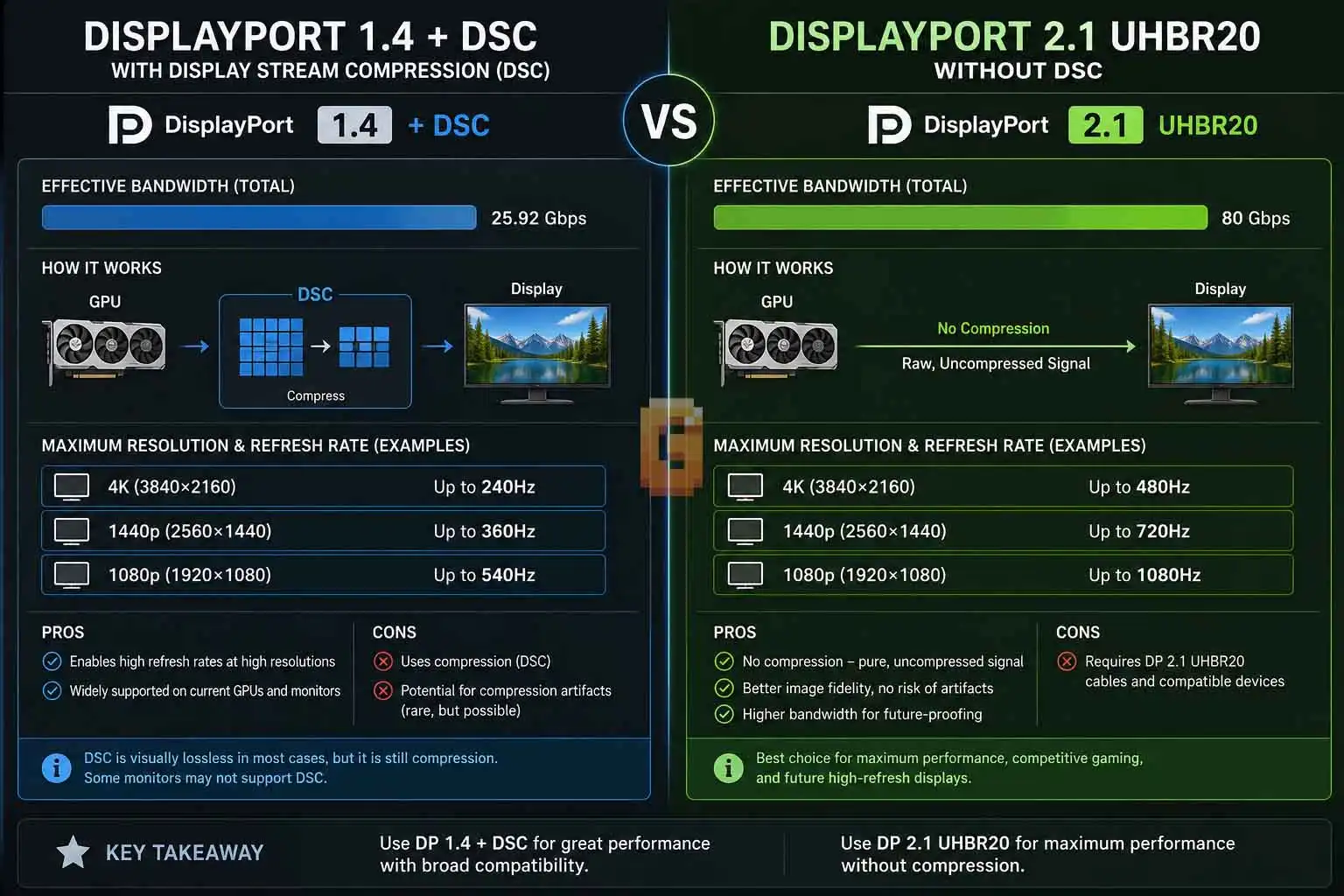
DisplayPort 2.1 UHBR provides substantially more link bandwidth than older DisplayPort configurations, which can make high-resolution, high-refresh modes possible without DSC in some systems. This is where the conversation becomes especially relevant to modern gaming monitors.
Older high-end monitors often relied heavily on DSC because their DisplayPort connection simply did not have enough raw bandwidth for their maximum resolution and refresh rate. That is why DSC became so common with 4K 240Hz monitors using DisplayPort 1.4.
- DisplayPort 1.4 incorporated DSC specifically to extend what the connection could transport.
- DisplayPort 2.1 UHBR changes the bandwidth equation.
VESA’s DP80 specification supports UHBR20 with four lanes and up to 80 Gbps of total link throughput. VESA explicitly cites use cases including uncompressed 4K 240Hz HDR.
ASUS designed the PG27UCDM around exactly this capability. The company’s current product information describes the monitor as using DisplayPort 2.1a UHBR20 with 80 Gbps bandwidth and specifically advertises 4K 240Hz operation without compression. That does not mean every computer connected to the PG27UCDM can do it.
The graphics card has to provide the appropriate DisplayPort capability. The cable has to maintain the necessary link. And the monitor has to negotiate the correct mode. This is why the entire chain matters.
A Real-World PG27UCDM Example
The PG27UCDM demonstrates why you should verify the actual configuration instead of assuming that a review’s DSC behavior applies to every GPU and cable combination. The setup discussed here uses an ASUS ROG Swift OLED PG27UCDM, an RTX 5090, and a DP80 DisplayPort cable.
The monitor was configured with DSC Support turned off. Yet the monitor’s OSD showed a 3840 × 2160, 240Hz signal. The NVIDIA control panel also showed:
- 3840 × 2160 native resolution
- 240Hz refresh rate
- 10 bpc output color depth
- RGB output color format
- Full dynamic range
That is an extremely useful real-world demonstration. It shows why a statement such as “DSC off means 120Hz on this monitor” is too broad. A review can accurately report what happened in its own test configuration while a different GPU, cable, firmware version, or DisplayPort mode produces a different result. That is exactly why technical troubleshooting should separate review observations from universal specifications.
The PG27UCDM’s own specifications are particularly relevant here because ASUS explicitly designed its DisplayPort 2.1a UHBR20 connection for 4K 240Hz without compression. There is also a useful historical explanation for conflicting reviews.
Some earlier PG27UCDM testing was performed with NVIDIA cards that only exposed DisplayPort 1.4. In that situation, disabling DSC resulted in a much lower maximum refresh rate because the connection did not have the bandwidth available for the monitor’s highest modes.
That result is not necessarily wrong. It simply describes a different transport configuration. This is one of the biggest lessons when reading monitor reviews:
Never separate the monitor from the GPU and connection used to test it.
How to Check If DSC Is Actually Active on Your Setup
The most reliable approach is to check the monitor’s DSC setting, the active DisplayPort mode, and the actual output resolution, refresh rate, color format, and bit depth.
Start with the monitor. Open the OSD and find the DisplayPort Stream and DSC Support options. On the PG27UCDM, ASUS explicitly provides both settings.
Next, check your GPU control panel. For NVIDIA users, open the display resolution settings and look at the active mode. For a high-end PC monitor, useful values include:
- Native resolution
- Maximum refresh rate
- RGB output
- 10 bpc output
- Full dynamic range
These settings tell you what signal is actually being delivered. However, there is an important limitation. Seeing 4K 240Hz 10-bit RGB does not, by itself, prove whether DSC is active. A compressed stream can carry those same visible output characteristics.
You need to verify DSC separately through the monitor’s OSD or another tool that explicitly reports DSC status. That distinction is crucial. The image format and the transport method are not the same thing. This is also where your cable matters.
If your monitor and GPU support UHBR20, a VESA-certified DP80 cable is designed for that high-speed link. VESA says DP80 cables support four-lane UHBR20 operation up to 80 Gbps.
If you are troubleshooting an apparently limited connection, swap the cable only after confirming its actual certification and specification. Don’t assume a generic cable marked “8K” is equivalent to a certified DP80 cable.
Should You Turn DSC Off?
If your GPU, monitor, and connection can run your desired mode uncompressed, turning DSC off is a perfectly reasonable choice. If DSC is required to reach your target resolution and refresh rate, leaving it enabled is usually the practical choice.
There is no universal rule that DSC must be enabled. There is also no universal rule that DSC should be disabled. It depends on your hardware.
If your system can deliver 4K 240Hz 10-bit RGB without DSC, you have the option to run that mode uncompressed.
If your GPU only has DisplayPort 1.4 and your monitor needs DSC to reach 4K 240Hz, disabling DSC will force you into a lower-bandwidth configuration. That is why older DisplayPort 1.4 systems and newer DisplayPort 2.1 UHBR20 systems can produce completely different results on the same monitor.
The important thing is to avoid treating DSC as inherently good or bad. It is a transport technology. Its job is to solve a bandwidth problem. If you don’t have the bandwidth problem, you may not need it. If you do have the bandwidth problem, DSC can be exactly what allows the display to operate at its intended resolution and refresh rate.
What This Means for HDMI vs DisplayPort
DSC is also relevant to HDMI, but DisplayPort discussions often make it more visible because DSC has been used to extend high-resolution DisplayPort configurations beyond what older raw link bandwidth could carry.
VESA states that DSC 1.2b has been incorporated into both DisplayPort and HDMI external video interfaces. That makes DSC a useful bridge between the two technologies. When comparing HDMI and DisplayPort, it is not enough to look at the connector or headline bandwidth. You also need to consider whether DSC is being used.
A connection with lower raw bandwidth can still support a demanding display mode when DSC is available. That is why a DisplayPort 1.4 monitor can reach a resolution and refresh combination that its raw link bandwidth could not carry uncompressed.
Meanwhile, a newer DisplayPort 2.1 UHBR20 connection can provide enough bandwidth for some of those same modes without compression. For the fuller comparison of what each standard delivers outside of DSC specifically, our breakdown of HDMI 2.0 vs DisplayPort 1.4 covers the baseline bandwidth and feature differences this section builds on.
The Three Biggest DSC Mistakes to Avoid
The three biggest mistakes are treating DSC as a cable feature, assuming a review’s result applies to every system, and using resolution/refresh rate alone to determine whether DSC is active.
Mistake 1: “My cable supports DSC”
The cable transports the signal. It does not perform the DSC encoding. Instead, look at its certified link capability.
Mistake 2: “DSC off means 120Hz”
Not necessarily. That may be true for a particular GPU, monitor, firmware, and connection. It is not a universal law.
The PG27UCDM is a good example because its DisplayPort 2.1a UHBR20 connection is specifically designed to support 4K 240Hz without compression.
Mistake 3: “4K 240Hz means DSC is on”
Also not necessarily. The same visible resolution, refresh rate, and color settings can potentially be delivered using different transport configurations. You need to check the DSC state separately.
FAQ: Common DSC Questions
Does DSC reduce image quality?
DSC is designed to be visually lossless. VESA describes the technology as visually lossless and has performed subjective testing to evaluate that goal. Technically, however, DSC is a lossy codec, so “visually lossless” is more precise than simply calling it lossless.
Can an older GPU use DSC with a modern monitor?
Yes, if the GPU’s display output supports DSC and the monitor supports the corresponding implementation. A modern monitor does not automatically give an older graphics card newer DisplayPort capabilities.
Does a DP80 cable turn DSC off?
No. A DP80 cable provides the bandwidth and signal integrity needed for UHBR20 operation; it does not decide whether DSC is used. The source and display negotiate the transport configuration.
Why does my monitor need DSC for 4K 240Hz?
Your GPU or connection may not have enough uncompressed bandwidth for 4K 240Hz. This is particularly common with older DisplayPort generations. DSC can reduce the transport bandwidth required while preserving visually lossless quality.
Can I use 4K 240Hz without DSC?
Yes, on hardware that provides enough uncompressed link bandwidth and supports the required mode. The ASUS PG27UCDM is specifically designed around DisplayPort 2.1a UHBR20 and advertises uncompressed 4K 240Hz operation.
Final Verdict: Does My GPU or Cable Support DSC?
The best answer to does my gpu or cable support dsc is not a simple yes or no. Think about DSC as a complete connection chain:
GPU/source → DisplayPort link → cable → monitor/sink
- The GPU needs the appropriate source-side capabilities.
- The monitor needs the corresponding DSC support.
- The cable needs to reliably carry the negotiated DisplayPort link rate.
- And the monitor’s firmware and settings can influence what modes are actually available.
DSC itself is not something the cable “does.” The cable’s job is to carry the signal. That distinction alone clears up a surprising amount of confusion.
DSC also should not automatically be treated as a bad thing. VESA designed it as a low-latency, visually lossless display compression technology, and it has become an important part of modern high-resolution display interfaces. At the same time, newer DisplayPort 2.1 UHBR hardware can make DSC unnecessary for some demanding modes.
The ASUS PG27UCDM is a particularly good example. With the right source and connection, it can use its 80 Gbps UHBR20 interface to deliver 4K 240Hz without compression. So don’t guess.
- Check your GPU’s DisplayPort capabilities.
- Check your monitor’s OSD.
- Check your cable’s actual certification.
- Then check what resolution, refresh rate, color format, and bit depth your system is really delivering.
That is much more reliable than assuming that DSC is automatically on, automatically off, or automatically required.
The next step is simple: check the three parts of your own chain — GPU, cable, and monitor — and verify the actual transport mode rather than relying on the label on any single component.
References
VESA — Display Stream Compression
ASUS ROG Swift OLED PG27UCDM – Tech Specs