Restart vs Shutdown Windows 11: Why Rebooting Is Actually Better

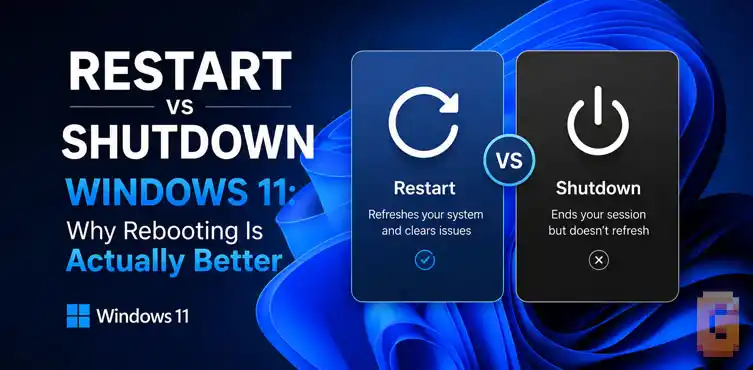

Restarting a Windows 11 PC performs a complete system refresh by clearing the physical RAM and reloading the core system kernel from scratch. Clicking “Shut Down” does not actually reset your system state; instead, a default feature called Fast Startup saves your active Windows kernel to a hibernation file on your drive so your computer turns on faster.
This means unresolved bugs and memory leaks can survive a traditional shutdown. Understanding restart vs shutdown Windows 11 at this level is the key to solving problems that seem to come back no matter how many times you turn your PC off.
Restart vs Shutdown Windows 11: Why They’re Not the Same Thing
We have all been there. Your computer starts lagging, your browser tabs are freezing, or your Wi-Fi suddenly drops offline. Naturally, your first instinct is to turn the machine off, wait a few seconds, and turn it back on.
But did you know that doing this might not actually be fixing the problem? In modern operating systems, the debate of restart vs shutdown Windows 11 behavior is more than just a matter of terminology. They are two entirely different technical processes.
Many users assume that shutting down their computer is the most thorough way to clear out errors. Surprisingly, the exact opposite is true. If you are trying to troubleshoot a slow computer or finish installing updates, clicking restart is almost always the superior choice.
To understand why this happens, we have to look under the hood of how Windows handles power management.
Why does restarting fix my PC when shutting down doesn’t?
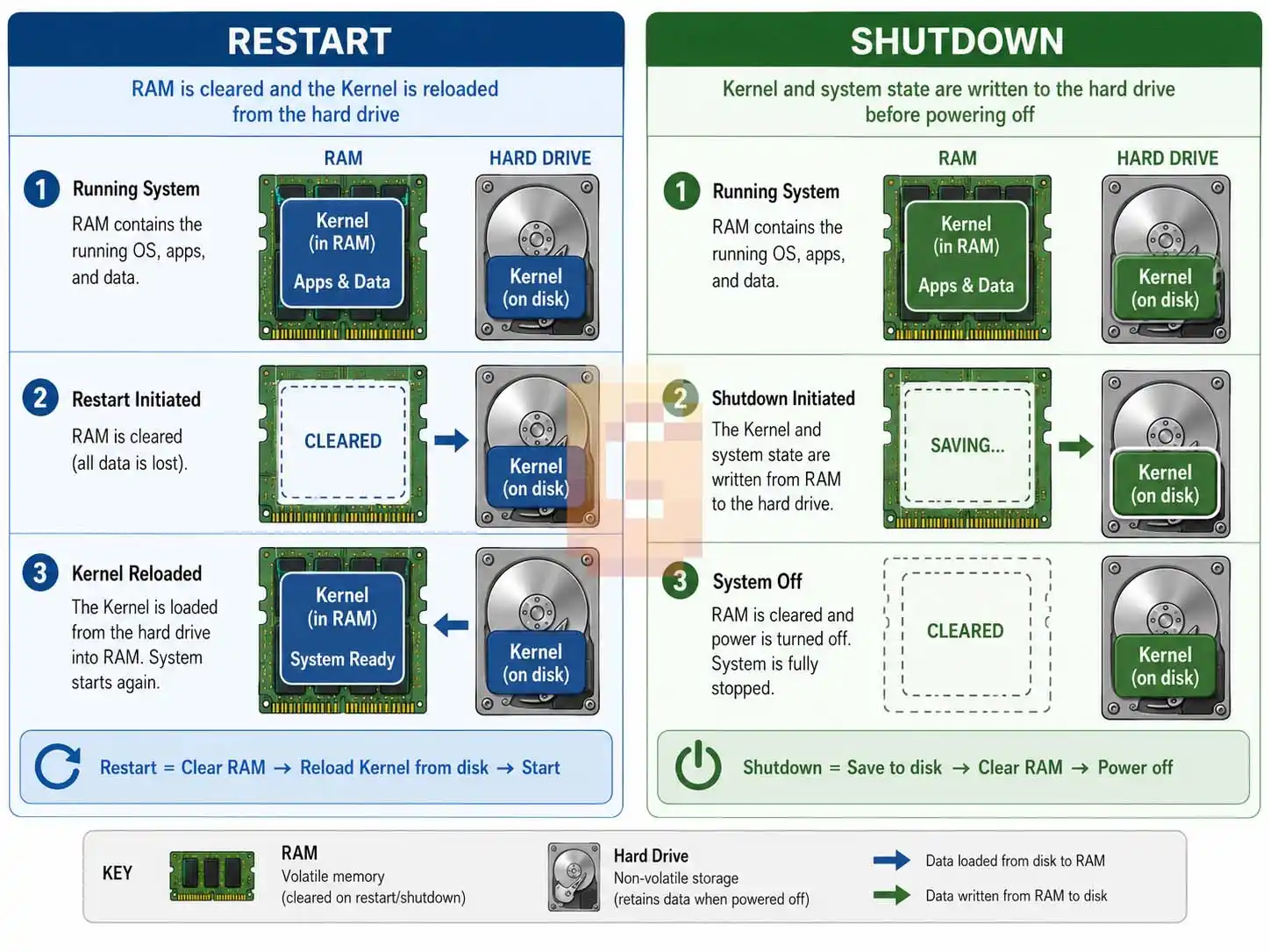
Restarting your PC initiates a true “cold boot” by completely wiping system memory (RAM) and clearing the active Windows kernel session from scratch. Shutting down, however, saves the core system kernel to disk, allowing existing software errors and memory leaks to persist when you turn it back on.
This difference exists because of how Windows handles the system kernel. The kernel is the most vital part of the operating system. It sits between your software and your physical hardware, managing operations.
When you click restart, Windows completely terminates the kernel session. It unloads every driver, clears the temporary memory cache, and forces the computer to reinitialize all hardware components during the next boot.
Have you ever looked at the Task Manager on a laptop that has been shut down daily, only to find the “uptime” counter showing thirty or forty days of continuous runtime? I see this happen all the time when helping friends troubleshoot their PCs. They are shocked because they thought shutting down was resetting everything.
In reality, because the kernel never truly stopped running, the system uptime timer kept ticking. Only a restart resets that timer back to zero. That uptime number is one of the simplest ways to see restart vs shutdown Windows 11 in action — it’s hard evidence of what’s really happening under the hood.
How does Windows 11 Fast Startup affect my system?
Fast Startup is the hidden mechanism behind most of the restart vs shutdown Windows 11 confusion — once you understand it, everything else here clicks into place. It’s a default Windows 11 feature that acts as a “hybrid boot” mode, logging you out but saving the kernel’s active state to a file called hiberfil.sys on your drive. When you turn your computer back on, Windows simply reloads this file instead of conducting a complete system initialization.
Microsoft introduced this feature back in the Windows 8 era. At the time, mechanical hard drives were the standard, and computers took several minutes to boot up. Fast Startup was a clever way to make boot times feel much snappier.
However, Fast Startup does not save your user session. It closes your personal applications and logs you out, but it keeps the underlying Windows environment in a suspended state.
The mechanics of kernel hibernation
When you click “Shut down,” Windows tells all your background services to prepare for suspension. It then writes the entire state of the loaded Windows kernel and system drivers into the hiberfil.sys file on your solid-state drive or hard disk.
When you push the physical power button to turn the computer back on, Windows does not spend time loading every system file. Instead, it reads the saved kernel image directly from your drive and copies it back into your system memory. This cuts boot times down significantly, but it skips the diagnostic checks of a clean startup.
Why your uptime counter keeps ticking
Because the system kernel is never truly closed during a shutdown, any micro-stutters or corrupted configurations in the background remain in that saved state. If a system process becomes unstable, shutting down the computer simply writes that unstable process to your storage drive.
When you turn the PC back on, you are loading that exact same unstable process right back into your active RAM. It is a bit like pausing a movie with a glitch on the screen, turning off the TV, and then turning it back on to find the same frozen image.
The technical difference in restart vs shutdown Windows 11 performance
The main technical difference between restart vs shutdown Windows 11 behavior is that a restart completely bypasses Fast Startup, forcing a hardware and software reset. Shutting down relies on Fast Startup by default, meaning it prioritizes quick boot times over deep system stability.
To better understand this, we can look at the three most common issues users experience when their computers misbehave;
System sluggishness and memory leaks
Over hours or days of use, software applications leave behind temporary data in your system’s RAM. Sometimes, programs fail to release this memory when you close them, creating what developers call a “memory leak.”
If you rely solely on shutting down your PC, those memory leaks in kernel-level drivers can persist. A restart wipes the physical RAM clean of all leftover data, ensuring your computer starts with a clean slate. This is often why a simple reboot instantly restores system responsiveness.
Stuck or incomplete Windows Updates
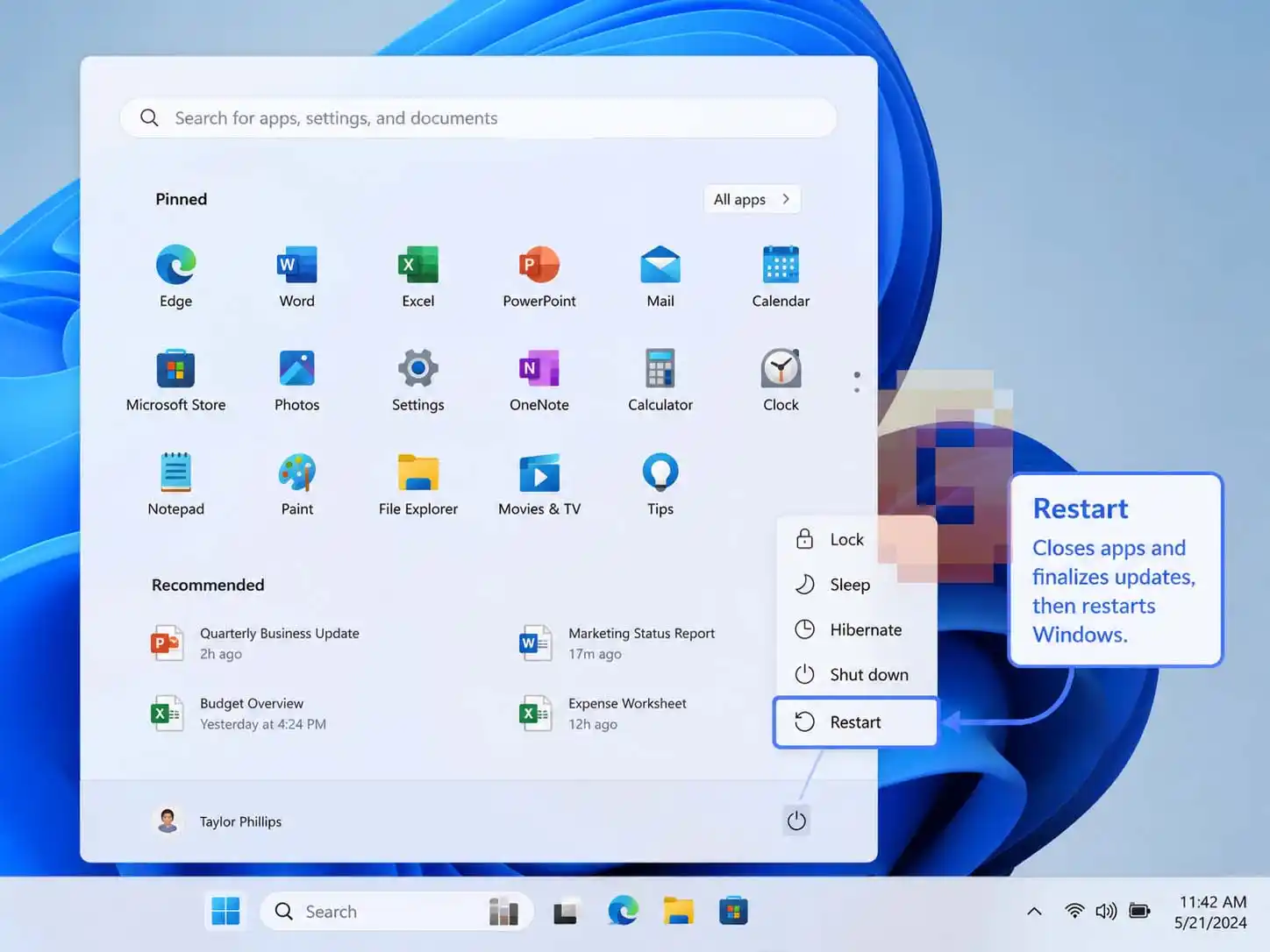
Have you ever noticed that Windows Updates always ask you to “Restart” rather than “Shut Down”? This is not an oversight by Microsoft.
Many system files cannot be modified or replaced while they are actively being used by the operating system kernel. Since a shutdown preserves the kernel state, Windows cannot apply deep system modifications during a standard power-off cycle.
A restart completely unloads these system files, allowing the Windows installation environment to replace outdated files before the operating system boots back up.
Unresponsive hardware and crashing drivers
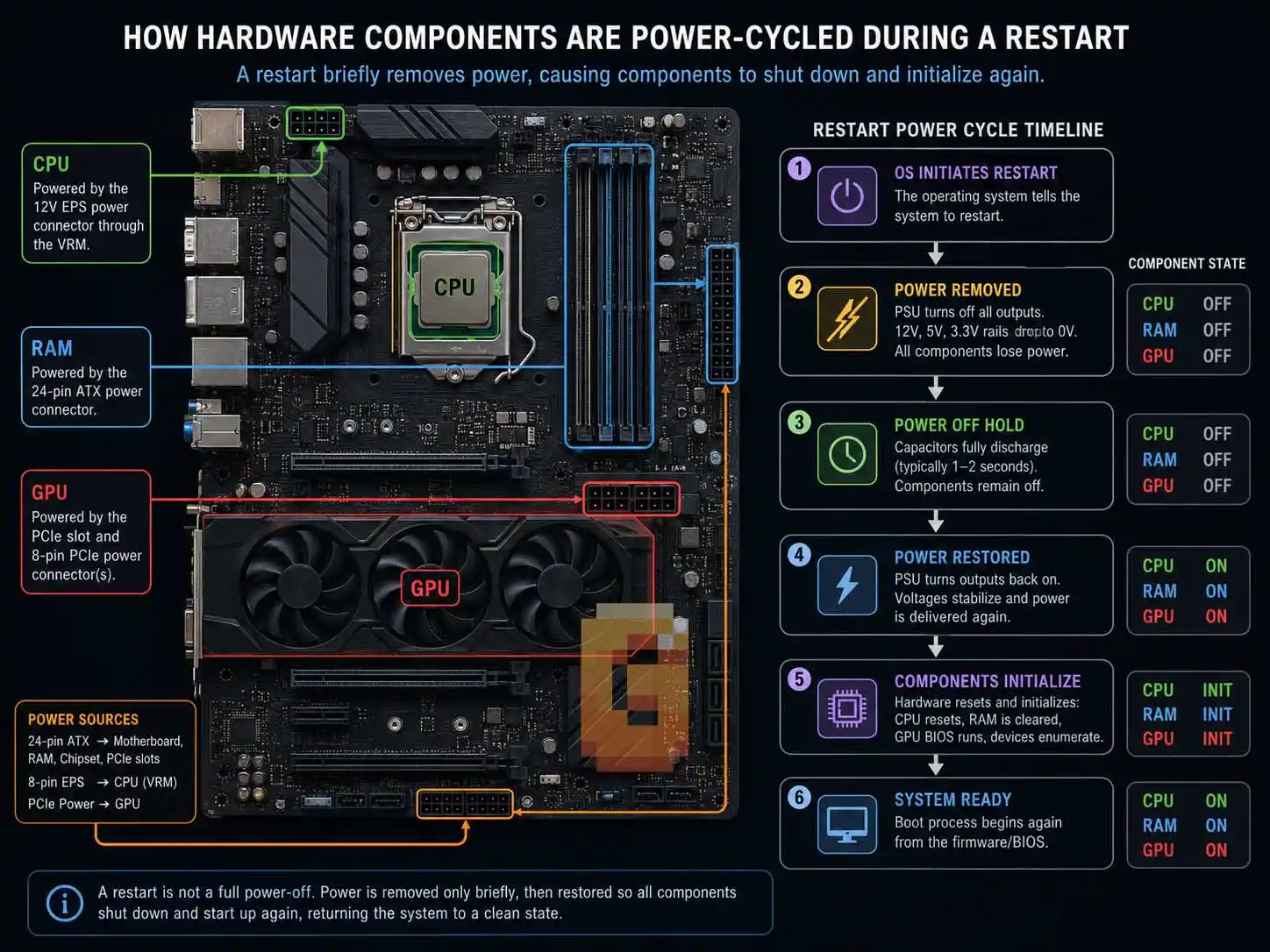
Hardware peripherals like Wi-Fi cards, Bluetooth adapters, and printers rely on software drivers to communicate with Windows. If a driver crashes or enters an invalid state, it can make your hardware completely unresponsive.
When you shut down, the corrupted driver state is often saved directly to disk. A restart forces Windows to reinitialize the hardware and reload the drivers from scratch. If you are struggling with a frozen mouse, a missing Wi-Fi icon, or sound issues, a restart is the only reliable way to force those devices to reconnect.
Should you disable Fast Startup on your computer?
This is the practical decision point in restart vs shutdown Windows 11: do you keep Fast Startup for slightly faster boots, or turn it off for full stability?
Disabling Fast Startup is highly recommended if you regularly experience glitchy drivers, struggle with stuck updates, or use a high-speed SSD where boot time differences are negligible. If your computer uses an older mechanical hard drive, however, keeping Fast Startup enabled might still be useful for daily speed.
Modern computers running on fast NVMe Solid State Drives (SSDs) load files incredibly quickly. On these systems, the time difference between a Fast Startup boot and a cold boot is usually just a couple of seconds.
For most modern systems, the stability benefits of turning off Fast Startup far outweigh the minimal speed advantages.
Don’t want to change your settings? Use this one-step workaround instead;
If you only need a single clean shutdown — without permanently disabling Fast Startup — Windows 11 has a built-in trick that most users never discover.
Hold the Shift key on your keyboard while clicking Shut Down. That is all there is to it. Just open the Start menu, click the Power icon, hold Shift, and then click Shut Down. Windows will immediately perform a full cold shutdown, bypassing Fast Startup entirely for that one session. Your Fast Startup setting remains untouched for the next time you power off normally.
A cold boot is the recommended first step for persistent app errors like the c2r64.dll error in Microsoft Office, where the Click-to-Run service needs to reinitialise from scratch. The same logic applies to browser errors — a proper cold boot often clears the ERR_CONNECTION_RESET error before you need to touch your antivirus settings.
This is especially useful if you are troubleshooting a one-off issue and do not want to permanently change your power settings, or if you share a computer with someone who relies on Fast Startup for quicker boot times.
| Shift + Shut Down | Disable Fast Startup | |
|---|---|---|
| Bypasses Fast Startup | ✓ Yes | ✓ Yes |
| Permanent change | ✗ No | ✓ Yes |
| Requires settings access | ✗ No | ✓ Admin rights |
| Best for | One-time fix | Long-term stability |
If you want every future shutdown to behave this way automatically, follow the steps below to disable Fast Startup permanently.
How to turn off Fast Startup in Windows 11
If you want your computer to perform a true, clean shutdown every single time you click “Shut down,” you can disable Fast Startup manually.
- Open the classic Control Panel by searching for it in the Start menu.
- Click on Hardware and Sound, then select Power Options.
- On the left sidebar, click Choose what the power buttons do.
- Click the link at the top that reads Change settings that are currently unavailable (this requires administrator privileges).
- Look at the bottom of the window and uncheck the box next to Turn on fast startup (recommended).
- Click Save changes.
Once you disable this setting, clicking “Shut down” and “Restart” will perform the exact same deep system clean.
FAQ Section
Why does my computer uptime not reset when I shut it down?
Your uptime does not reset because Windows 11 uses a default feature called Fast Startup. This feature hibernates the system kernel rather than closing it. To reset your uptime, you must select “Restart” or manually disable Fast Startup in your power settings.
Does restarting use more battery or power than shutting down?
Restarting does use slightly more power momentarily because your system must run full hardware diagnostics and reload all files from your drive. However, the overall difference in energy consumption on modern hardware is extremely small and negligible for daily use.
Is it safe to leave my computer on sleep mode instead of restarting?
Sleep mode is safe for short breaks, but it does not clear your system memory or install updates. Over time, background processes can clutter your RAM, so you should still restart your computer at least once a week to maintain system health. In the broader restart vs shutdown Windows 11 picture, sleep mode sits somewhere in between — convenient, but not a substitute for either.
It’s a different story on a Mac — our breakdown of whether you should shut down your MacBook covers why Apple Silicon’s sleep state doesn’t carry the same trade-offs.
Can Fast Startup cause problems with dual-boot setups?
Yes, Fast Startup can lock your hard drive partitions, making them inaccessible or read-only from other operating systems. If you dual-boot Windows 11 with Linux or another OS, it is highly recommended to disable Fast Startup to prevent data corruption.
Summary and Next Steps
There are couple of things to remember about restart vs shutdown Windows 11;
- Restarting clears your RAM, reloads the Windows kernel, applies updates, and fixes driver issues.
- Shutting down (with Fast Startup active) saves your kernel state to disk for a faster boot, but it preserves existing system glitches.
- Disable Fast Startup if you use a fast SSD and prefer maximum stability over saving a few seconds of boot time.
If your computer is acting sluggish, do not just shut it down and turn it back on. Give it a proper restart to let your operating system clear out the cobwebs. And if sluggishness shows up specifically during gaming rather than everyday use, it’s worth checking whether 1% low FPS — not your shutdown habits — is the real culprit.
References
- Microsoft Learn: Distinguishing Fast Startup from Wake-from-Hibernation.
- Microsoft Learn: Is shutting down a Windows 11 PC the same as restarting?
- HP Support Document: How to optimize hybrid boot fast startup in Windows 10 and 11.