When to Enable G-Sync (And When to Turn It Off)

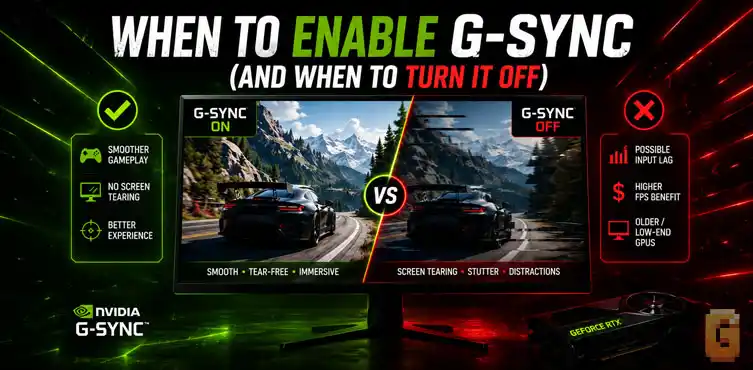

Enable G-Sync whenever your game’s frame rate regularly falls below your monitor’s maximum refresh rate and you want smoother gameplay with less screen tearing. For competitive shooters, the answer depends on your priorities, your hardware, and whether the game supports technologies like NVIDIA Reflex or Reflex 2.
If you’ve ever searched when to enable G-Sync, you’ve probably noticed something frustrating. Most articles explain what G-Sync is, but very few actually answer when you should use it. Instead, the discussion is spread across Reddit threads, Steam guides, hardware forums, and YouTube videos, with plenty of conflicting advice.
The confusion usually starts after someone notices screen tearing, random stuttering, or inconsistent gameplay. Then comes another common question: should G-Sync stay enabled all the time, or should it only be used in certain games? Competitive players often wonder if disabling G-Sync reduces latency, while single-player gamers simply want the smoothest experience possible.
The reality is that there isn’t a one-size-fits-all answer. It depends on your frame rate, your monitor’s variable refresh rate (VRR) range, and the type of games you play.
This guide explains how G-Sync actually works, why refresh rate limits matter, when you should enable it, when you might want to disable it, and how newer technologies like NVIDIA Reflex 2 have changed long-standing recommendations.
How G-Sync Works (And Its Refresh Rate Floor)
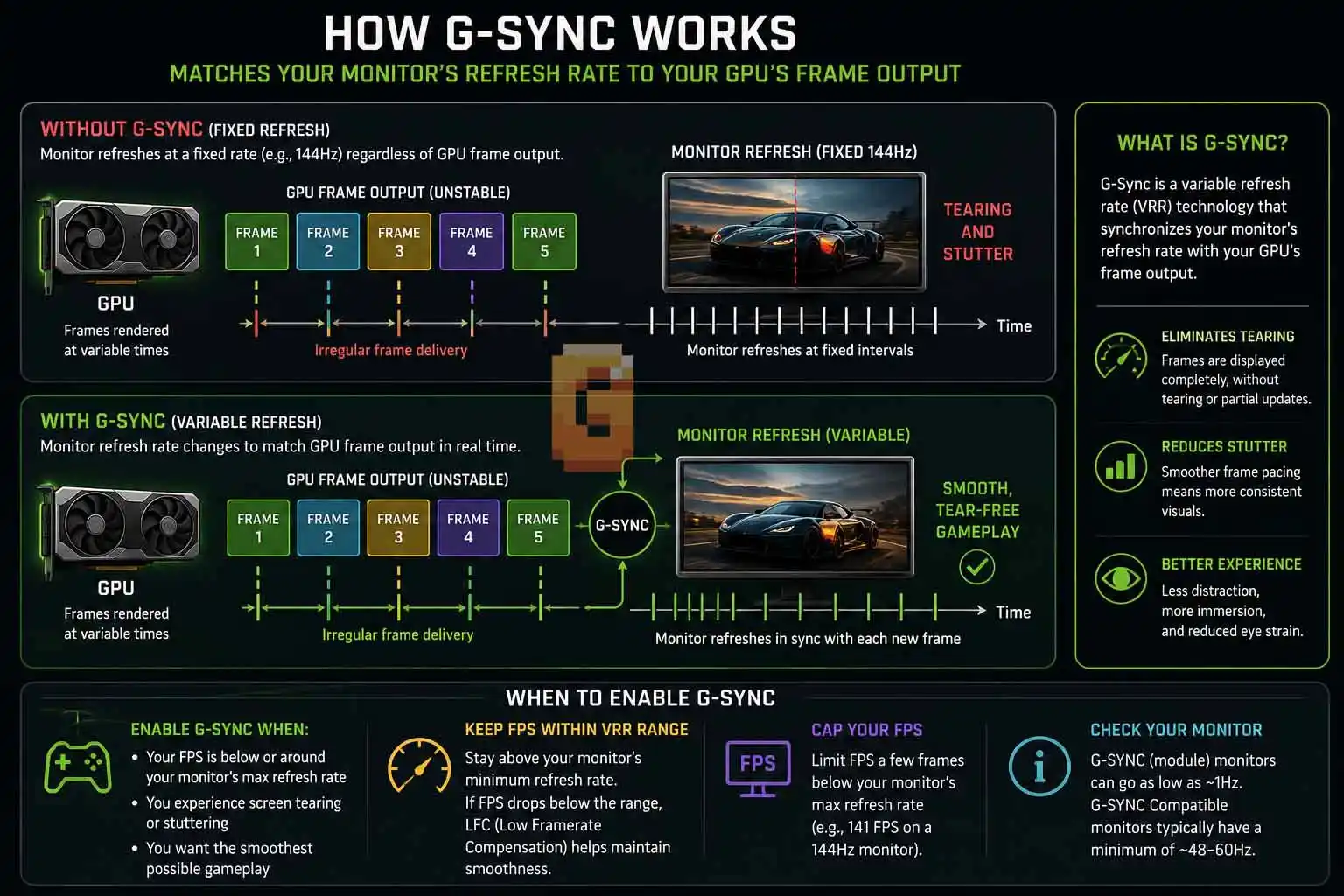
G-Sync synchronizes your monitor’s refresh rate with your GPU’s frame output. Instead of refreshing at a fixed frequency, your display changes its refresh rate dynamically so that each refresh matches a newly rendered frame.
The result is smoother motion with significantly less screen tearing and improved frame pacing whenever your frame rate isn’t perfectly stable.
However, G-Sync only works while your frame rate stays inside your monitor’s Variable Refresh Rate (VRR) operating range.
Why the minimum refresh rate matters
Every adaptive-sync display has a lower refresh-rate limit.
Once your game’s frame rate drops below that limit, the monitor can no longer match every frame directly. That’s where Low Framerate Compensation (LFC) comes in. LFC duplicates frames so the monitor continues operating within its supported refresh range while preserving adaptive synchronization.
Many people assume every G-Sync monitor behaves the same way here, but that’s not actually true.
G-SYNC module vs G-SYNC Compatible
This is an important distinction that’s often overlooked.
Displays with NVIDIA’s dedicated G-SYNC hardware module typically support an extremely wide VRR range and can synchronize refresh rates all the way down to roughly 1Hz without relying on Low Framerate Compensation. This allows them to remain adaptive even when frame rates become exceptionally low.
G-SYNC Compatible monitors, on the other hand, use the VESA Adaptive-Sync standard rather than NVIDIA’s dedicated hardware module. Their minimum refresh rate is commonly around 48Hz to 60Hz, although this varies by display. When frame rates fall below that threshold, they depend on LFC to maintain smooth adaptive refresh behavior.
This explains why two monitors both carrying a “G-SYNC” label can behave differently when a demanding game drops below 60 FPS.
Understanding this refresh-rate floor is the key to understanding when to enable G-Sync in the first place.
| Feature | G-SYNC (Hardware Module) | G-SYNC Compatible |
|---|---|---|
| Underlying technology | NVIDIA proprietary module | VESA Adaptive-Sync |
| Typical VRR floor | ~1Hz | ~48–60Hz |
| Relies on LFC | Rarely needed | Yes, below the floor |
| Validation process | NVIDIA factory-tested | NVIDIA compatibility-tested |
| Variable overdrive | Hardware-tuned | Varies by panel |
| Typical price premium | Higher | Lower to none |
One more thing worth checking before you dive into settings: true G-SYNC modules have historically required DisplayPort rather than HDMI to handle the bandwidth. If you’re not sure which port you should be using, our HDMI 2.0 vs DisplayPort 1.4 comparison breaks down the difference.
When to Enable G-Sync
The short answer is simple.
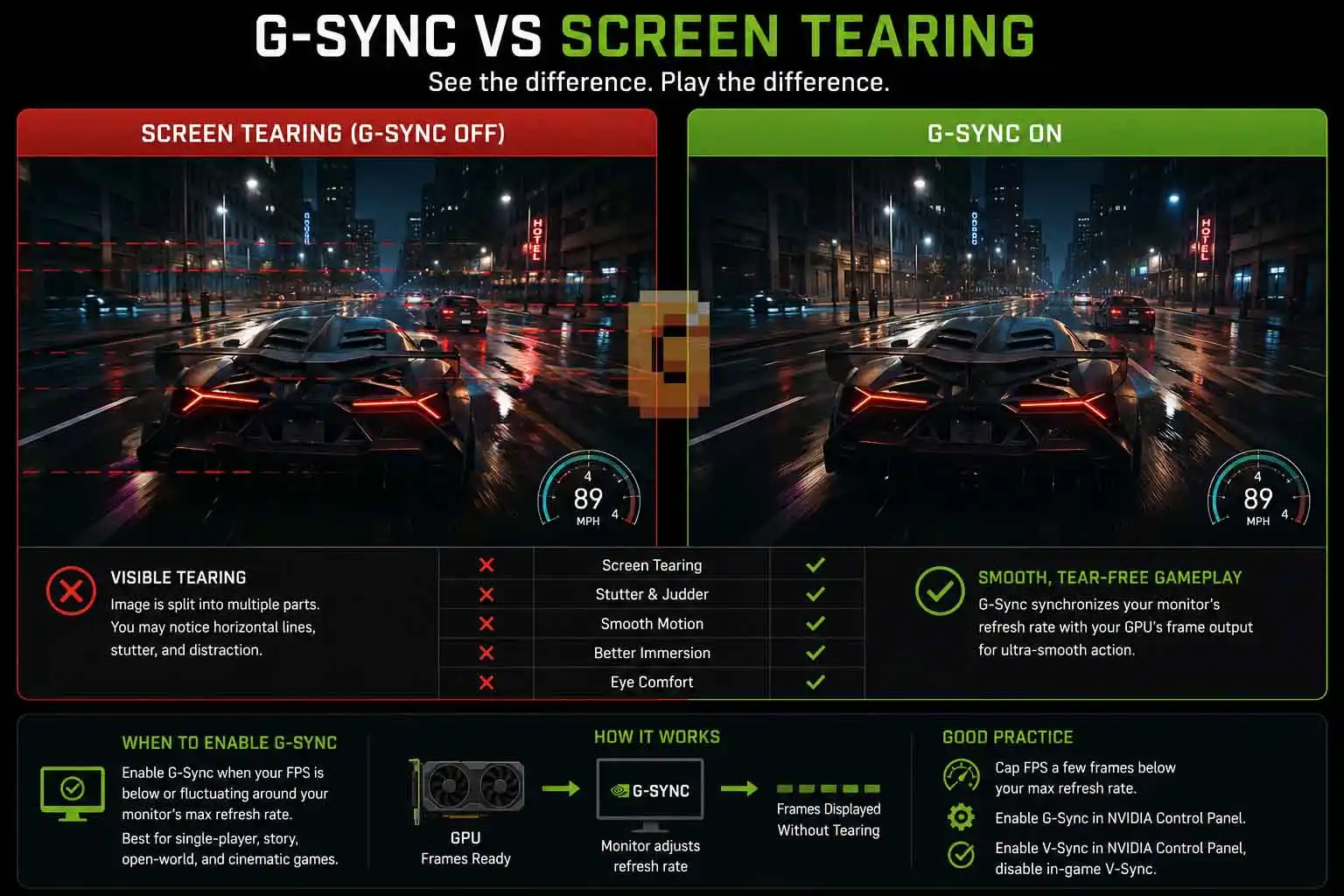
Enable G-Sync whenever your frame rate fluctuates below your monitor’s maximum refresh rate and you want the smoothest possible gameplay.
Adaptive sync is especially valuable in games where performance naturally changes from one scene to another. Examples include:
- Story-driven games
- Open-world adventures
- RPGs
- Racing games
- Flight simulators
- Cinematic action games
These titles rarely maintain one perfectly stable frame rate throughout an entire play session.
One area might render at 180 FPS, another at 110 FPS, while an especially demanding scene could briefly dip below 90 FPS. Without adaptive sync, those fluctuations can produce noticeable tearing or uneven motion. With G-Sync enabled, your monitor continuously adjusts its refresh rate to match the GPU’s output, producing a much smoother experience.
Should I Enable G-Sync?
For most PC gamers, the answer is yes.
If you primarily enjoy single-player games or visually demanding AAA releases, G-Sync is usually one of the easiest visual improvements you can enable. It doesn’t increase FPS. Instead, it improves how those frames are displayed.
Even when your average frame rate stays exactly the same, gameplay often appears noticeably smoother because the monitor and GPU remain synchronized.
If your monitor supports G-Sync or G-SYNC Compatible and your games don’t constantly exceed the monitor’s maximum refresh rate, leaving G-Sync enabled is generally the recommended approach.
Single-Player & Cinematic Games vs Competitive FPS
Not every genre benefits equally from adaptive sync. The type of game you play should influence whether G-Sync remains enabled.
Single-player games
For single-player titles, G-Sync is almost always worth using. Large open-world games, RPGs, action adventures, and graphically intensive releases frequently experience natural frame-rate fluctuations as scenes become more demanding.
Rather than displaying those changes as tearing or uneven motion, G-Sync allows the monitor to adapt in real time. The result is a smoother experience without needing to reduce graphics settings.
If your goal is visual quality and immersion, G-Sync is one of the best features you can leave enabled.
Competitive FPS games
Competitive shooters introduce a different priority. Games like Valorant, Counter-Strike, and Overwatch place much greater emphasis on responsiveness than visual smoothness.
For years, conventional wisdom suggested disabling G-Sync entirely for esports titles because the smallest possible input latency mattered more than eliminating tearing.
That advice still has merit in certain situations, especially if your system consistently renders hundreds of frames per second above your monitor’s refresh rate.
However, modern latency-reduction technologies have started changing that recommendation. Today, the smoothness-versus-latency trade-off isn’t nearly as straightforward as it once was.
G-Sync, V-Sync, and NVIDIA Reflex: What Should You Actually Enable?
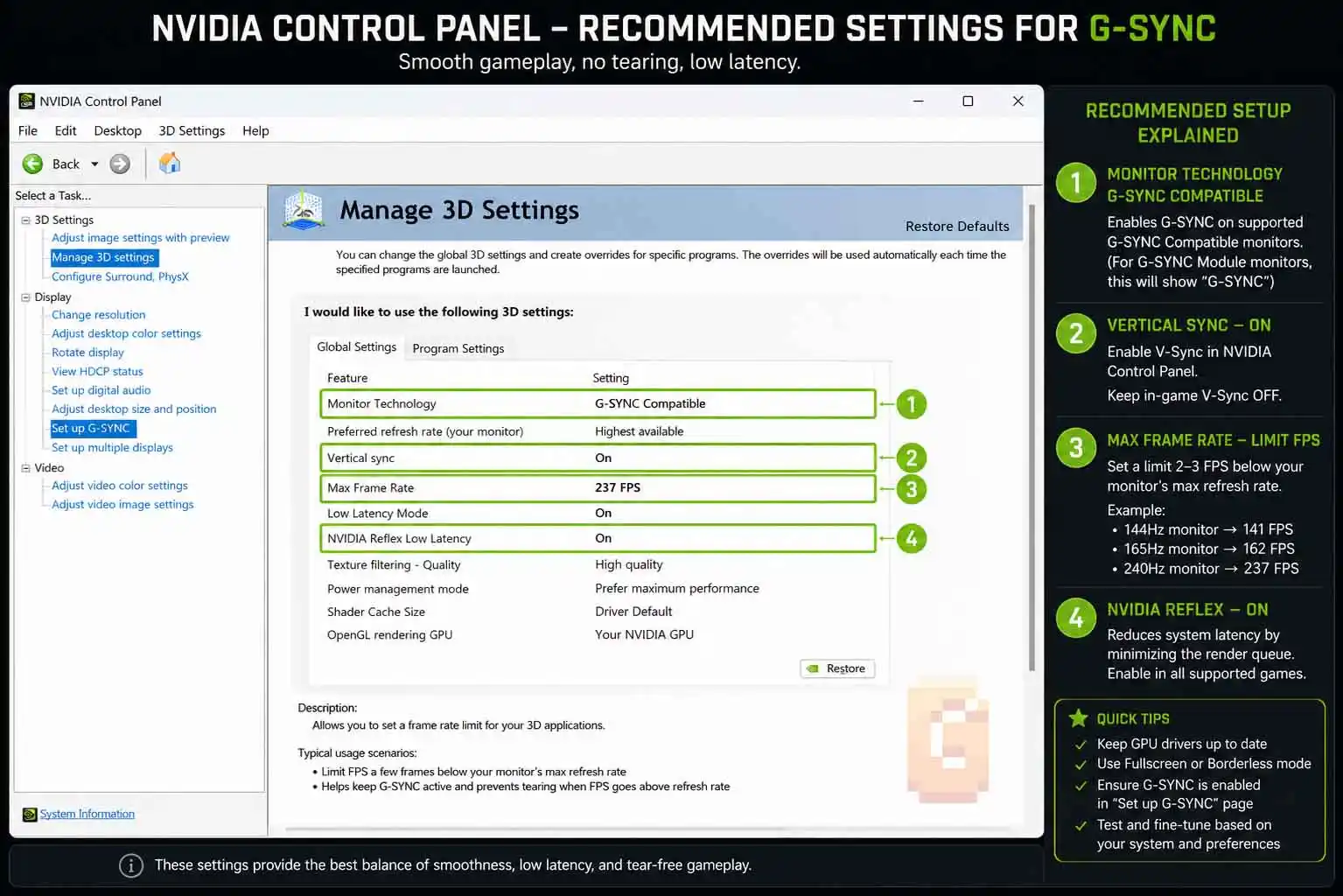
This is probably the most confusing part of setting up G-Sync correctly. Fortunately, there is now broad agreement among display experts and experienced PC gamers. A good baseline configuration looks like this:
- Enable G-Sync in NVIDIA Control Panel.
- Enable V-Sync in NVIDIA Control Panel.
- Disable V-Sync inside individual games.
- Keep NVIDIA Reflex enabled whenever the game supports it. Reflex reduces latency by minimizing the render queue, independent of your frame rate.
- Limit your frame rate a few FPS below your monitor’s maximum refresh rate.
That final step is especially important. If your FPS exceeds your monitor’s maximum refresh rate, the display leaves its adaptive refresh range and G-Sync can no longer synchronize every frame. For example:
| Monitor Refresh Rate | Recommended FPS Cap |
|---|---|
| 60Hz | 57 FPS |
| 75Hz | 72 FPS |
| 100Hz | 97 FPS |
| 120Hz | 117 FPS |
| 144Hz | 141 FPS |
| 165Hz | 162 FPS |
| 180Hz | 177 FPS |
| 240Hz | 237 FPS |
| 280Hz | 277 FPS |
| 360Hz | 357 FPS |
| 480Hz | 477 FPS |
This configuration helps G-Sync remain active while minimizing tearing and maintaining excellent responsiveness.
NVIDIA Reflex 2 and Frame Warp: Why Competitive Advice Is Changing
One of the biggest developments in low-latency gaming arrived with NVIDIA Reflex 2, announced at CES 2025. Unlike the original Reflex technology, Reflex 2 introduces Frame Warp, which further reduces perceived latency by updating rendered frames closer to the moment they’re displayed.
This significantly changes the traditional conversation around G-Sync for competitive gaming.
For years, many competitive players disabled G-Sync because they wanted every possible millisecond of latency reduction. With Reflex 2, that trade-off becomes much less clear.
According to NVIDIA’s own demonstrations, Reflex 2 can reduce system latency by up to 75% in supported titles under specific test conditions. NVIDIA also demonstrated Valorant running at under 3ms average system latency on an RTX 50-series GPU producing over 800 FPS during its presentation. These figures come from NVIDIA’s internal testing and represent a controlled demonstration rather than typical real-world performance.
Currently, Reflex 2 support is limited to a small number of games, including VALORANT and THE FINALS, with broader game support and wider GPU compatibility planned.
That hardware trajectory is also shaping next-generation GPU design. If you’re weighing whether to upgrade now or wait, our look at why the RTX 6090 may be worth holding out for covers how the Feynman architecture is expected to push these latency improvements further.
What does this mean for G-Sync?
It means the old recommendation of “always disable G-Sync for competitive games” is becoming outdated. If you’re playing a Reflex 2-supported title on compatible hardware, it’s increasingly possible to enjoy adaptive sync while keeping system latency exceptionally low.
For competitive players, the best choice is no longer determined by G-Sync alone. It’s now influenced by your GPU generation, whether the game supports Reflex 2, your monitor’s refresh rate, and your own preference for visual smoothness versus absolute responsiveness.
In other words, the gap between smooth gameplay and low latency is becoming much smaller than it was just a few years ago.
Does G-Sync Fix Stuttering?
Sometimes, but not always. G-Sync can smooth out uneven frame delivery caused by mismatched refresh timing, but it cannot fix every kind of stutter.
This distinction is important because many gamers assume enabling G-Sync will magically eliminate all hitching. In reality, it depends on what’s causing the problem.
What G-Sync can improve
G-Sync is designed to solve display synchronization problems, including:
- Screen tearing
- Uneven frame pacing
- Judder caused by fluctuating frame rates
- Micro-stutter resulting from refresh-rate mismatches
When your GPU delivers frames at inconsistent intervals but continues rendering normally, G-Sync helps the monitor display each frame at the correct time.
What G-Sync cannot fix
Some stutters happen before the frame even reaches your monitor.
Examples include:
- Shader compilation
- Asset streaming
- CPU bottlenecks
- Storage loading delays
- Poor game optimization
- Driver-related issues
If the game engine pauses while waiting for data or compiling shaders, G-Sync has nothing to synchronize because new frames simply aren’t being produced consistently.
That’s why two games running on the exact same PC can behave completely differently.
If Only Certain Games Stutter
One of the most confusing situations for PC gamers is when some games run perfectly while others randomly stutter.
For example, it’s entirely possible for one demanding AAA title to deliver consistently smooth gameplay while another experiences hitching despite similar graphics settings. In these situations, the problem often lies with the individual game rather than your hardware.
Possible causes include:
- Shader compilation during gameplay
- Engine-specific optimization issues
- Texture or asset streaming
- Driver compatibility
- Background overlays
- Recent game updates
Before changing your G-Sync settings, it’s worth confirming whether the issue is actually related to display synchronization or whether the game itself is producing inconsistent frame times.
If one game runs flawlessly while another doesn’t, G-Sync is rarely the root cause.
If your game still hitches after configuring G-Sync correctly, the next place to look is your 1% low FPS — it’s a more precise way to confirm whether the issue is frame pacing, a CPU bottleneck, or something else entirely that G-Sync was never designed to fix.
Common G-Sync Mistakes
Many G-Sync issues come down to incorrect configuration rather than the technology itself. Here are some of the most common mistakes.
Enabling V-Sync in multiple places
The commonly recommended setup is:
- Enable V-Sync in NVIDIA Control Panel.
- Disable V-Sync inside individual games.
Running both simultaneously can sometimes produce inconsistent behavior depending on the game’s engine.
Letting FPS exceed the VRR range
If your monitor refreshes at 240Hz but your game regularly reaches 300 FPS, G-Sync can no longer synchronize every frame because you’ve moved beyond the monitor’s adaptive refresh range. A simple frame-rate limiter solves this problem.
Assuming G-Sync increases FPS
It doesn’t. G-Sync improves how frames are displayed—not how quickly your GPU renders them. Your average FPS stays the same.
The experience simply feels smoother because frame delivery becomes more consistent.
Treating every monitor the same
As discussed earlier, true hardware G-SYNC displays and G-SYNC Compatible monitors behave differently at very low frame rates.
Understanding which type of monitor you own helps set realistic expectations, especially if you frequently play demanding games.
If you’re unsure which version your monitor supports, NVIDIA maintains a complete list of validated displays. That’s a separate buying and compatibility topic, but it’s worth checking if you’re uncertain about your hardware.
One more setup detail worth checking: which display mode you’re running the game in. Our comparison of fullscreen vs windowed vs borderless windowed covers how the choice between fullscreen, windowed, and borderless windowed can affect whether G-Sync engages properly in the first place.
Should You Enable G-Sync? Quick Reference
If you just want the short answer, here’s the easiest way to decide.
Enable G-Sync if:
- You mainly play single-player games.
- Your frame rate varies below your monitor’s maximum refresh rate.
- You want smoother gameplay with less screen tearing.
- You prefer visual consistency over chasing the absolute lowest latency.
Consider disabling G-Sync if:
- You mainly play highly competitive esports titles.
- Your FPS consistently stays well above your monitor’s refresh rate.
- You prioritize every possible millisecond of input latency.
- The game doesn’t support newer latency-reduction technologies like NVIDIA Reflex.
If you’re playing a Reflex 2-supported game on compatible hardware, it’s worth testing both configurations instead of automatically disabling G-Sync. Modern latency optimizations have made the decision much less black and white than it used to be.
Conclusion
Knowing when to enable G-Sync is much simpler once you understand what the technology is actually designed to do.
For most PC gamers, enabling G-Sync provides smoother gameplay by synchronizing the monitor’s refresh rate with the GPU’s frame output. It’s especially effective in single-player and graphically demanding games where frame rates naturally fluctuate.
Competitive gaming is more nuanced. While many players traditionally disabled G-Sync to minimize input latency, technologies like NVIDIA Reflex—and especially Reflex 2 with Frame Warp—have significantly changed that conversation. On supported games and hardware, the trade-off between smooth visuals and low latency is becoming much smaller than it used to be.
The best approach can be summarized like this:
- Enable G-Sync for most games.
- Pair it with NVIDIA Control Panel V-Sync and an FPS cap just below your monitor’s maximum refresh rate.
- Keep NVIDIA Reflex enabled whenever a game supports it.
- For competitive shooters, test both configurations rather than relying on outdated advice.
- Remember that G-Sync improves synchronization—not game optimization or raw FPS.
If you’re still experiencing stuttering after configuring G-Sync correctly, the next step is usually investigating frame pacing, shader compilation, driver behavior, or game-specific optimization rather than changing adaptive sync settings.
For a complementary graphics settings guide, our breakdown of anti-aliasing techniques covers how FXAA, TAA, DLAA, and DLSS fit into the same performance-versus-quality decision you’re already making with G-Sync.
Frequently Asked Questions
Should I enable G-Sync all the time?
Yes, for most gamers. If you mainly play single-player or graphically demanding games, leaving G-Sync enabled usually provides the smoothest experience with minimal screen tearing.
Does G-Sync reduce FPS?
No. G-Sync does not increase or decrease rendering performance. It synchronizes your monitor’s refresh rate with your GPU to improve how frames are displayed.
Can G-Sync fix random stuttering?
Sometimes. G-Sync helps with refresh synchronization and frame pacing, but it cannot fix shader compilation stutter, CPU bottlenecks, or poor game optimization.
Should I enable V-Sync with G-Sync?
Yes. The commonly recommended configuration is to enable V-Sync in NVIDIA Control Panel while disabling it inside individual games.
Does G-Sync help if my FPS is higher than my monitor’s refresh rate?
Not once your FPS exceeds the monitor’s VRR range. Limiting your frame rate slightly below your monitor’s maximum refresh rate helps G-Sync remain active.
Should I disable G-Sync for competitive games?
Not necessarily. Traditional advice favored disabling G-Sync to minimize latency, but NVIDIA Reflex and Reflex 2 have significantly reduced that trade-off in supported games. Testing both configurations is now the best approach.