Should I Shut Down My MacBook or Leave It in Sleep Mode?

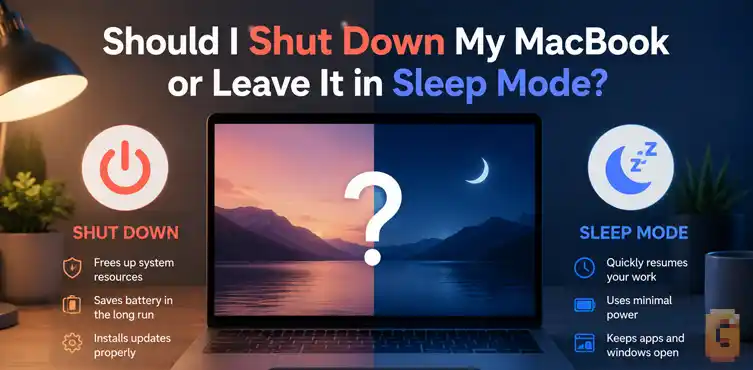

For almost all modern MacBooks, you should use sleep mode rather than shutting down. Apple Silicon chips (M1 through M4) are designed to stay on in a low-power state, drawing negligible battery and waking instantly when you open the lid. You only need to shut down your MacBook if you are storing it unused for several weeks, installing system updates, or troubleshooting a software issue.
If you just brought home a new M4 MacBook Air, or if you are running an older M-series machine, you might find yourself wondering about proper power hygiene. Specifically, should I shut down my MacBook when I’m done using it, or is closing the lid enough to protect the machine?
For years, PC and Intel-based Mac users were told to perform a full shutdown every night to save battery, clear memory, and prevent wear on internal parts. But the landscape of consumer hardware has changed fundamentally over the last few years.
Below, we will dive deep into how modern MacBooks manage power, how sleep mode affects your battery cycles, and what actually happens when you close the lid.
Shut Down, Sleep, or Close the Lid: What Each One Actually Does
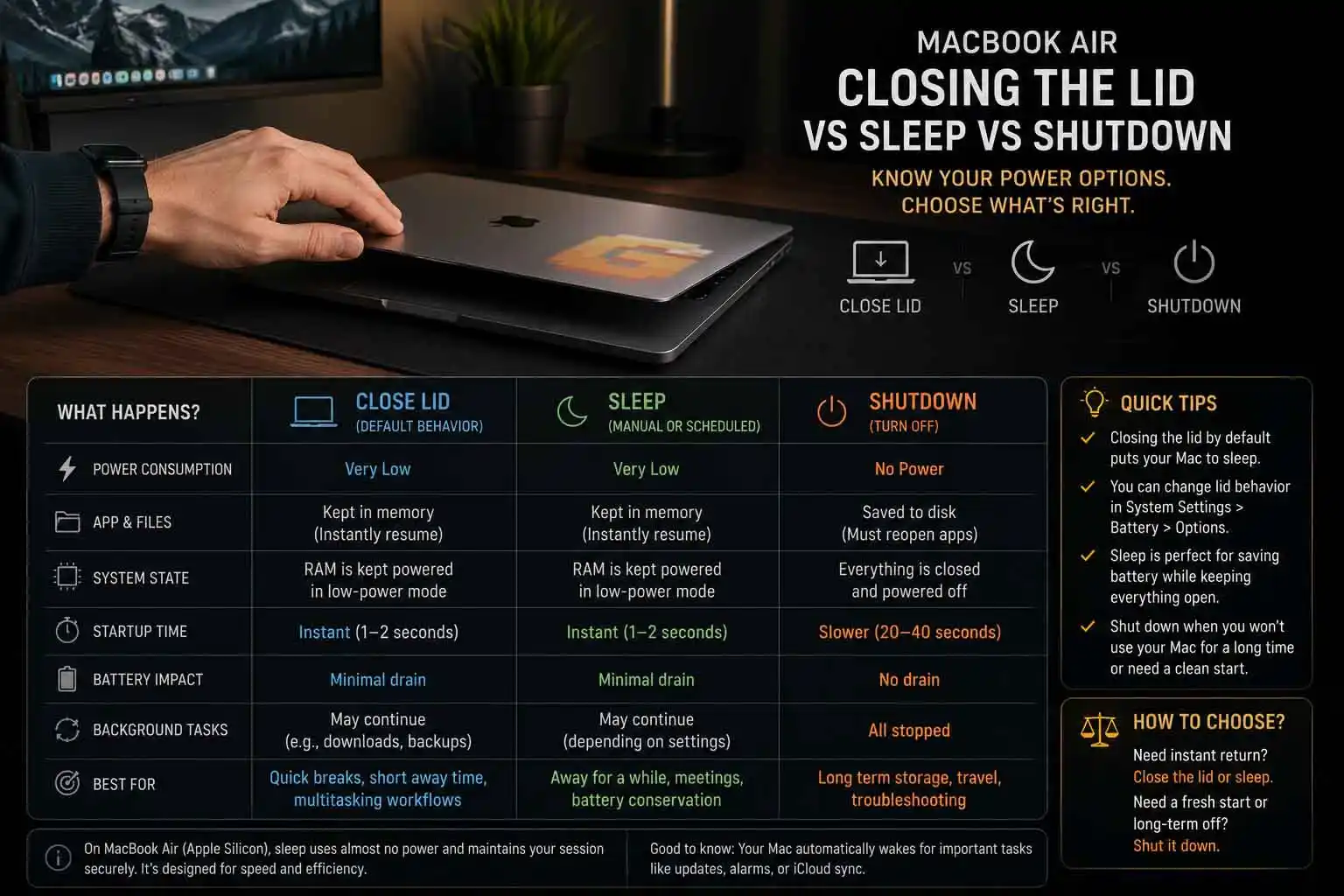
You should choose between closing the lid, selecting sleep mode, or shutting down based on how quickly you need to return to your work and how long your laptop will remain idle. Closing the lid triggers sleep automatically, whereas shutting down terminates all operations and clears the system memory completely.
The Reality of Closing the Lid
When people talk about putting their laptop to sleep, they rarely mean clicking the Apple logo and choosing “Sleep” from the dropdown menu. Instead, the actual choice comes down to a comparison of a MacBook closing lid vs sleep vs shutdown workflow.
When you close the lid of your MacBook, a magnetic sensor triggers the system to enter sleep mode. This is the default physical gesture of modern portable computing.
It keeps the system memory (RAM) active in a very low-power state. This RAM preservation is what allows your laptop to wake up in a fraction of a second when you open it back up.
Clamshell Mode and External Displays
If you use your MacBook connected to an external monitor, closing the lid behaves slightly differently. If your laptop is plugged into a power source and connected to an external screen, closing the lid will not put it to sleep.
Instead, it enters “Clamshell Mode.” This allows you to use your MacBook as a desktop computer while keeping the laptop screen off.
If you disconnect the power source, however, closing the lid will immediately force the MacBook into sleep mode. This prevents the laptop from running hot in your bag while disconnected from its charger.
What Actually Happens During a Shut Down?
When you initiate a full shutdown, your macOS operating system closes all open applications, saves critical configuration files, and cuts power to almost every component.
This means that any unsaved work in your RAM is lost. It also means that when you power the laptop back on, it must execute a full cold boot sequence.
A cold boot forces the processor to reload the operating system kernel and startup files from the solid-state drive (SSD) into the system memory.
Why the Answer Is Different for Apple Silicon MacBooks
Apple Silicon MacBooks handle sleep mode so efficiently that traditional advice about shutting down your computer is completely outdated. The transition to Apple’s M-series chips architecture changed the physics of how these laptops manage power.
Older Intel-based MacBooks relied on an architecture that was notoriously power-hungry, even when sleeping. If you left an Intel MacBook in sleep mode overnight, you might wake up to find 10% to 15% of your battery gone.
The Intel chips also required several seconds to wake up. They had to spin up cooling fans and gradually restore system states, leading to a sluggish experience.
The Power of Efficiency Cores
Apple’s M-series chips utilize a “System on a Chip” (SoC) design. This integrates the CPU, GPU, and unified memory into a single package.
These chips feature dedicated efficiency cores (E-cores) alongside performance cores (P-cores). When your MacBook goes to sleep, the performance cores shut down completely.
The efficiency cores take over, maintaining essential system background tasks while drawing an incredibly small amount of electrical current.
Near-Instant Wake
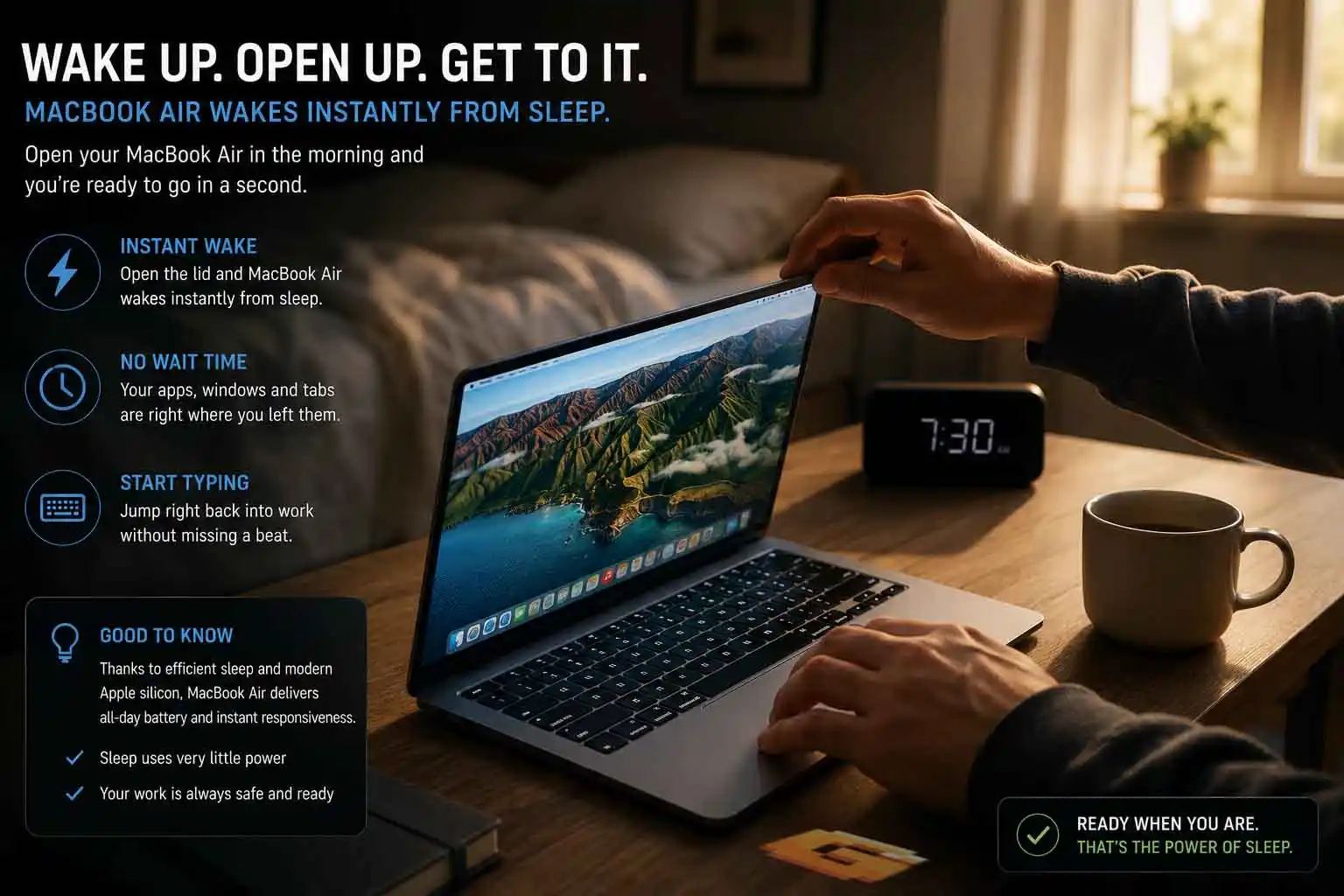
Because of unified memory and the integration of the SoC, waking an M-series MacBook from sleep is nearly instantaneous. It happens so quickly that it feels indistinguishable from opening a new tab in your web browser.
The computer does not need to warm up, run fans, or cycle through a complex wake routine. It is simply ready the millisecond the screen hinge starts to move.
Does Sleep Drain Your MacBook Battery?
No, sleep mode does not meaningfully drain your modern MacBook battery under normal conditions. On Apple Silicon hardware, the battery draw during sleep is so low that it has virtually no impact on your overall battery health or daily use.
The 0.21-Watt Reality
To understand how little power your laptop uses when asleep, we can look at physical specifications. Apple’s technical documentation indicates that an M1 MacBook Air draws roughly 0.21 watts of power while in its sleep state.
At 0.21W, ten hours of sleep uses roughly 2.1 watt-hours — less than 0.77 kWh over an entire year of nightly sleep. M4 MacBook Air environmental reports show comparable or lower figures — the M1 number is used here as a documented, conservative baseline.
Why Sleep Drain Is No Longer a Worry
When users ask, does sleep drain MacBook battery, they are often remembering the days of hot laptops in backpacks. Older machines would occasionally fail to enter sleep properly, continuing to run hot and draining the battery to zero in a closed bag.
With Apple Silicon, the hardware and software are vertically integrated. The operating system has precise control over the hardware states.
Unless a specific app is aggressively preventing your Mac from sleeping, you will typically lose only 1% to 2% of battery life over an entire night of sleep.
What Your MacBook Does While It Sleeps (Power Nap Explained)
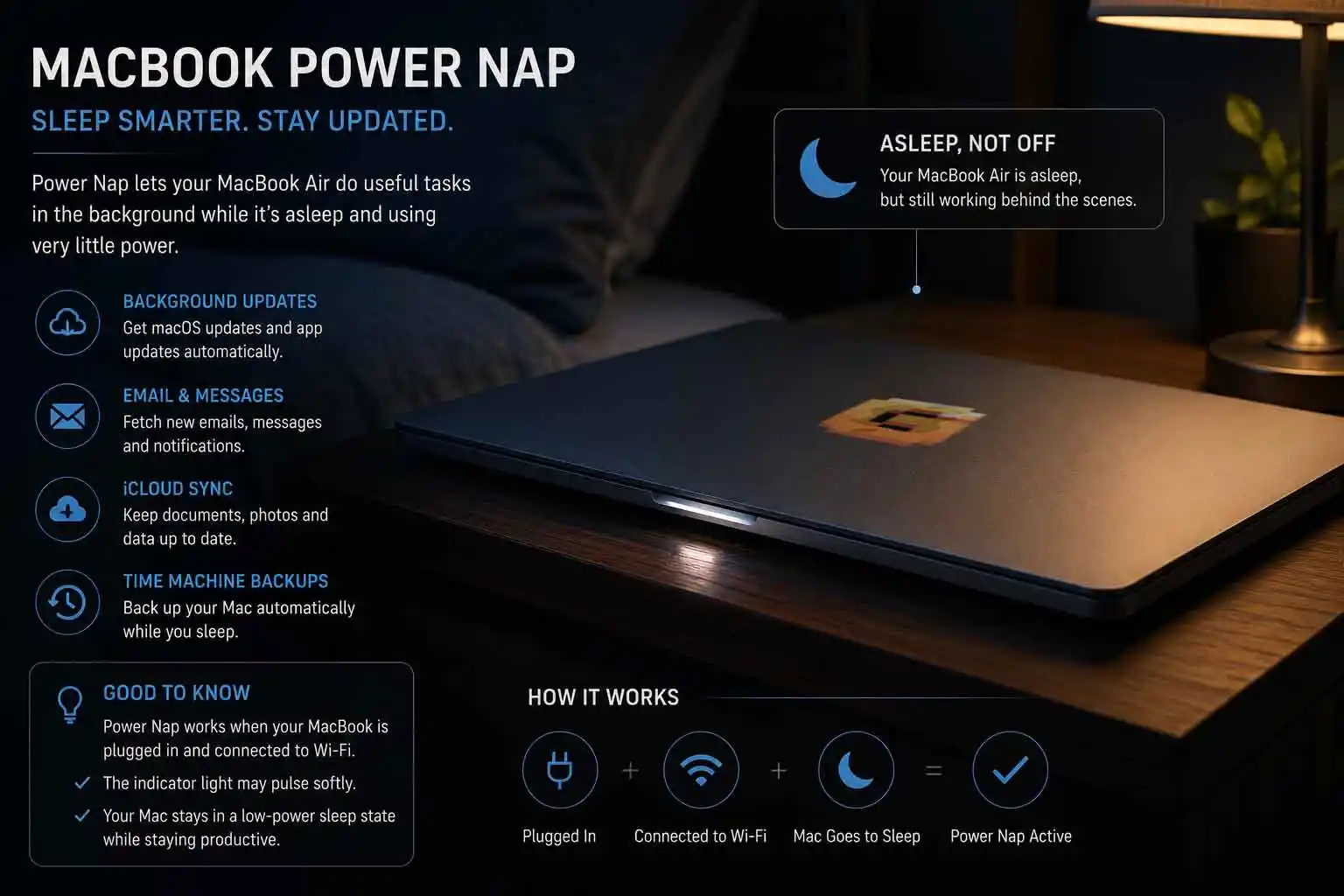
Your MacBook conducts essential background maintenance tasks like syncing mail and updating iCloud files while it is in sleep mode. This silent, low-energy background work ensures your machine is fully updated the moment you lift the lid.
To understand this process, it helps to have the classic feature of MacBook Power Nap explained for modern systems. On older Intel Macs, Power Nap was a separate toggle that allowed the computer to check for updates while sleeping.
On Apple Silicon Macs, the system handles these background check-ins natively and automatically, without needing a dedicated toggle in your settings.
What Happens in the Background?
While your Mac is asleep, it does not sit in total darkness. Instead, it wakes up periodically for fraction-of-a-second intervals to perform low-energy tasks.
- Mail Syncing: It fetches new emails so your inbox is ready when you open the lid.
- iCloud Syncing: It updates your reminders, notes, photos, and calendar events.
- Find My Updates: It periodically transmits a secure location signal to Apple’s network so you can find your device if it is lost.
- Time Machine Backups: If your MacBook is plugged into power and asleep, it can perform hourly backups to your local drive.
Because these tasks are routed directly through the high-efficiency cores, they use very little power. This background management ensures you do not have to wait for applications to sync when you start working.
The Battery Cycle Secret: How Sleeping Saves Your Battery Health
Keeping your MacBook in sleep mode while connected to power can actually preserve your long-term battery lifespan better than shutting it down. This is due to the way lithium-ion batteries count charge cycles and manage start-up power draws.
Understanding Charge Cycles
Every MacBook battery is rated for a specific lifespan, usually measured in charge cycles. For modern MacBooks, Apple designs the battery to retain up to 80% of its original capacity at 1,000 complete charge cycles.
A charge cycle is counted when you use 100% of your battery’s capacity. This does not have to come from a single charge.
For example, if you use 50% of your battery one day, charge it to full, and then use 50% the next day, that counts as one single charge cycle.
The Sleep vs. Shutdown Cycle Difference
When you shut down your MacBook completely, the RAM is cleared. When you power it back on, the boot process requires energy to load the operating system and launch startup items.
On modern MacBooks with Optimized Battery Charging active, the practical difference for battery health between sleep and daily shutdown is small — but sleep while plugged in remains the more conservative default.
Optimized Battery Charging handles this automatically — which is why leaving a plugged-in MacBook in sleep mode is preferable to repeatedly shutting down and recharging from a partial state.
When You Should Actually Shut Down Your MacBook
You should shut down your MacBook when you plan to leave it unused for an extended period, when performing hardware maintenance, or when troubleshooting persistent software bugs. While sleep is perfect for daily use, a full shutdown serves as a vital tool for specific scenarios.
Key Scenarios for a Full Shutdown
Knowing exactly when to shut down MacBook hardware helps you protect your device from unexpected battery drain or system instability. Here are the specific times you should choose a complete shutdown over sleep mode:
- Extended Non-Use (More than a few days): If you are going on vacation or will not use your laptop for more than three days, shut it down. This stops all background activity and preserves your battery charge.
- Travel on a Full Battery: If you are packing your laptop into a tight suitcase or backpack for a long flight, a shutdown ensures the system cannot accidentally wake up if the lid shifts slightly.
- System Updates: Many macOS updates require a full system restart to write updates to the boot drive.
- Hardware Maintenance: If you are cleaning your keyboard or screen, shutting down ensures you do not accidentally trigger hotkeys or input commands.
Troubleshooting Software Glitches
While macOS is excellent at memory management, background processes can occasionally get stuck in a loop. When an application misbehaves, it can keep your CPU running at a high percentage, even when you close the lid.
A full shutdown or restart is the best way to clear the RAM and reset stuck processes.
Should I Shut Down My MacBook Every Night?
No, you do not need to shut down your MacBook every night. Doing so is unnecessary for modern Apple Silicon systems and can actually slow down your daily workflow.
When users ask, should I shut down my MacBook every night, they are often trying to protect the hardware from wearing out. However, modern solid-state drives and solid-state memory do not suffer from the same mechanical wear as old spinning hard drives.
Turning off your computer every night means you miss out on automatic overnight updates, iCloud syncs, and local backups. It also forces you to waste time every morning reopening your browser tabs, documents, and application windows.
For the vast majority of users, simply closing the lid at the end of the day is the best practice. Your Mac will enter its low-power sleep state, carry out its quiet background maintenance, and be ready to work the second you are.
How Do I Optimize My MacBook’s Sleep Settings?
You can optimize your MacBook’s sleep settings by navigating to the System Settings menu and adjusting display sleep timers, password requirements, and battery health options. These settings help you strike the perfect balance between high security and excellent battery life.
To customize how your MacBook behaves when you close the lid or walk away, navigate to your System Settings app. Here are the specific configurations to review.
Lock Screen Configurations
Go to System Settings > Lock Screen to set up your primary display timers.
- Turn display off on battery when inactive: Set this to 3 Minutes. This ensures that if you walk away from your desk while unplugged, your screen shuts down quickly to preserve your battery life.
- Turn display off on power adapter when inactive: Set this to 10 Minutes. Since battery life is not a concern when plugged in, you can allow a longer delay so your screen does not go dark while you are reading a document.
- Require password after screen saver begins or display is turned off: Set this to Immediately. This is a critical security step that ensures your data is protected the moment your Mac enters its sleep state.
| Setting | Recommended Value |
|---|---|
| Display off on battery when inactive | 3 Minutes |
| Display off on power adapter when inactive | 10 Minutes |
| Require password after screen saver begins or display is turned off | Immediately |
Battery Health and Performance Settings
Navigate to System Settings > Battery to configure your power and health options.
- Optimized Battery Charging: Make sure this is enabled. This feature learns your daily usage habits and prevents your battery from sitting at a high-stress 100% charge for hours on end, extending its overall lifespan. If you want even more control than Optimized Battery Charging provides, our guide on the best MacBook battery charge limit covers how to manually cap charging at 80% or 90% for maximum long-term battery health.
- Low Power Mode: Set this to Only on Battery or leave it off entirely. The efficiency of the M-series chips means you rarely need to throttle your processor unless you are trying to survive a long travel day without a charger.
Summary of Best Practices
To keep your MacBook running at its best, follow these simple rules of thumb:
- Daily Use: Simply close the lid when you are finished. Let the computer sleep.
- Weekly Maintenance: Restart your Mac once a week, or whenever you notice a slight lag in performance.
- Travel and Storage: Shut down your Mac if you are packing it away for travel or if you will not use it for more than three days.
- Charging Habits: Leave your Mac plugged in when working at a desk to minimize unnecessary battery discharge cycles. Ensure Optimized Battery Charging is turned on.
By letting your MacBook manage its own power states through sleep mode, you get the best of both worlds: a machine that is always ready to work, security features that protect your data, and hardware that maintains its health for years to come.
Frequently Asked Questions
Does leaving my MacBook in sleep mode degrade the SSD?
No, leaving your MacBook in sleep mode does not wear down your SSD. Sleep mode stores your active session in the system RAM, which uses electrical currents rather than writing data to the physical storage drive. Modern SSDs are highly durable and are not affected by normal sleep routines.
Should I shut down my MacBook when charging it?
You do not need to shut down your MacBook while it charges. The internal charging circuitry in macOS is highly advanced. It manages power delivery safely whether the computer is awake, asleep, or completely shut down, automatically slowing down the charge rate as it approaches 100% to protect battery health.
Why does my MacBook battery drain fast when sleeping?
If your battery drains more than 5% overnight during sleep, a background application is likely preventing the system from sleeping. You can open the Activity Monitor app, click on the Energy tab, and check the “Preventing Sleep” column to find the application responsible for the drain.
Is it bad to leave my MacBook plugged in all the time?
It is safe to leave your MacBook plugged into power because modern macOS software prevents overcharging. With “Optimized Battery Charging” enabled, your Mac will often hold the charge level at 80% to protect the chemical health of the battery cells when it detects it is constantly plugged in.
Does sleep mode keep my location visible on Find My?
Yes, sleep mode allows your MacBook to periodically send out encrypted location signals to nearby Apple devices. This ensures that you can still locate your laptop through the Find My app even if the lid is closed and the system is asleep.
References & Resources
Apple Support: About battery health management in Mac notebooks
Energy Star: Certified Computer Specifications
Apple Developer Documentation: Energy Efficiency Guide for Mac Apps