Fullscreen vs Windowed vs Borderless Windowed: Which to Use?

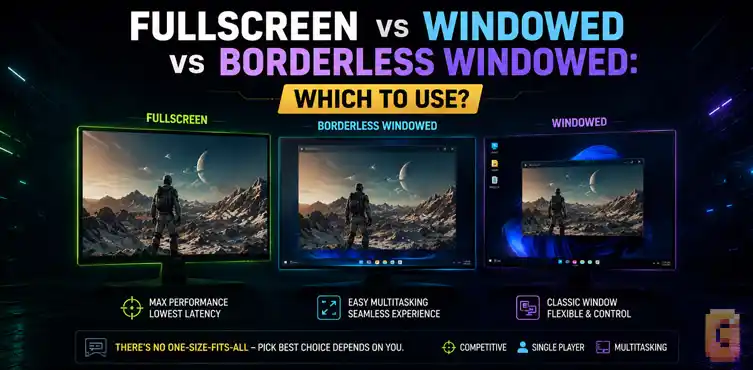

For most modern PC games, borderless windowed performs almost the same as fullscreen. The biggest remaining difference is input latency, not FPS. If you never multitask and want the lowest possible latency, exclusive fullscreen is usually the better choice.
Gaming display modes have become surprisingly confusing. What used to be a simple choice between fullscreen and windowed is now complicated by borderless windowed mode, Windows Fullscreen Optimizations, modern graphics APIs, and changing Windows behavior.
If you’ve searched for fullscreen vs windowed vs borderless windowed comparison, you’ve probably seen conflicting advices. Some sources still repeat recommendations from a decade ago, while others claim there’s no difference at all. The truth is somewhere in the middle.
This guide explains what each display mode actually does, why old advice doesn’t always apply anymore, and when exclusive fullscreen still provides real benefits.
Before diving into the details, let’s address the questions that keep appearing in discussions:
- Does fullscreen actually improve gaming performance anymore?
- Should you use borderless windowed if you never Alt+Tab or multitask?
- What does Windows Fullscreen Optimizations actually do, and should you disable it?
We’ll answer all three in detail.
What Each Mode Actually Does: Exclusive Fullscreen, Borderless, and Windowed
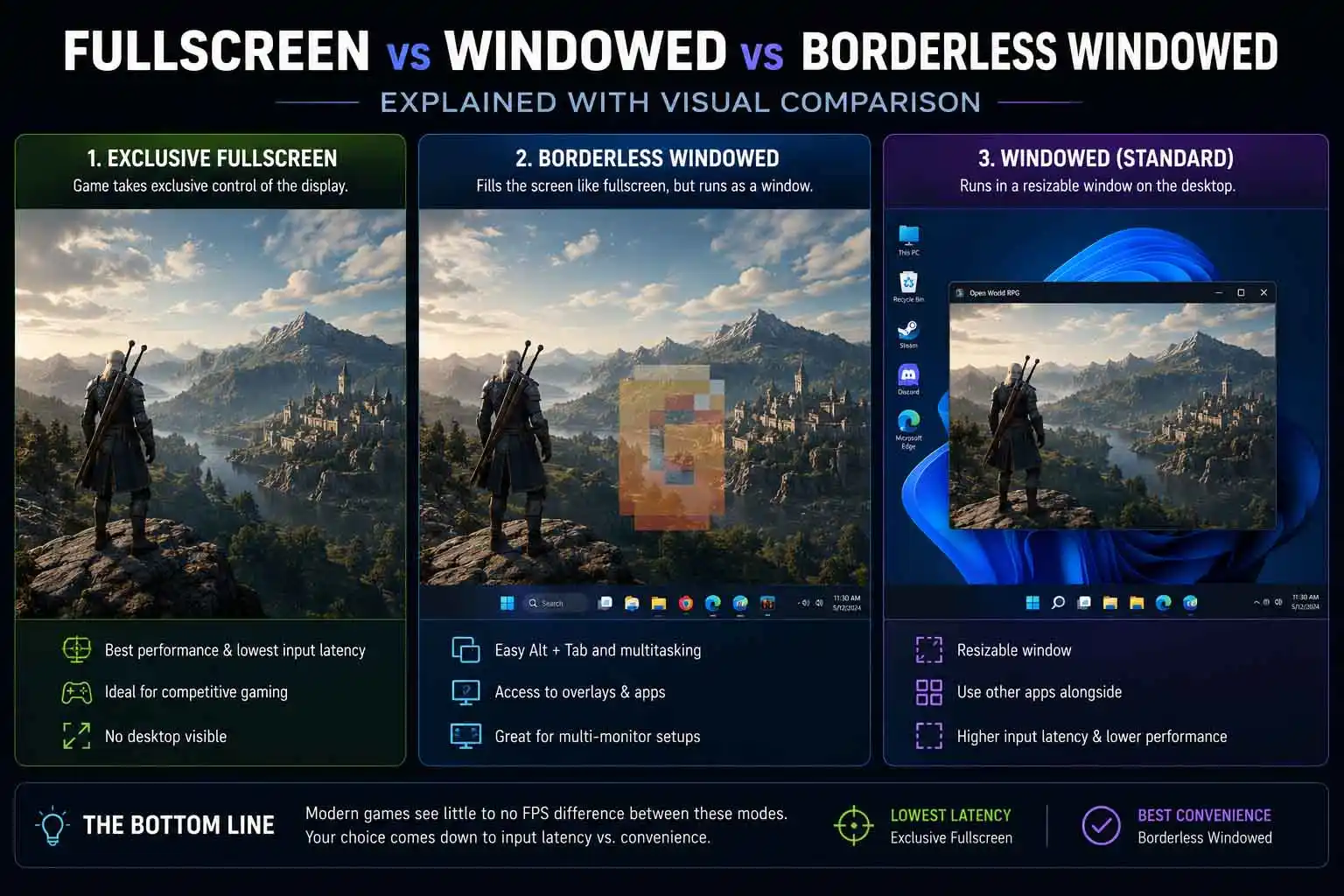
The names sound simple, but each mode behaves differently.
Exclusive Fullscreen
Exclusive fullscreen gives the game direct control over the display output. Historically, this bypassed much of Windows’ desktop rendering pipeline and was considered the fastest way to play.
Older PC gaming advice almost always recommended exclusive fullscreen because it often provided both better performance and lower input latency. Today, things are more complicated.
Borderless Windowed
Borderless windowed creates a window without borders that fills the monitor.
Visually, it looks almost identical to fullscreen, but Windows still treats it as a desktop window. This allows instant task switching, easier multi-monitor support, and smoother integration with overlays. Many modern games actually default to borderless windowed.
Standard Windowed Mode
Regular windowed mode runs the game inside a resizable desktop window. It’s mainly useful for development, testing, or running multiple applications simultaneously. Most gamers don’t choose it for everyday gameplay.
Fullscreen vs Windowed vs Borderless Windowed Explained: The Modern Reality
Here’s the biggest misconception still circulating online:
Exclusive fullscreen does not automatically mean higher FPS anymore.
Modern Windows versions and modern graphics APIs have changed how many games present frames to the display.
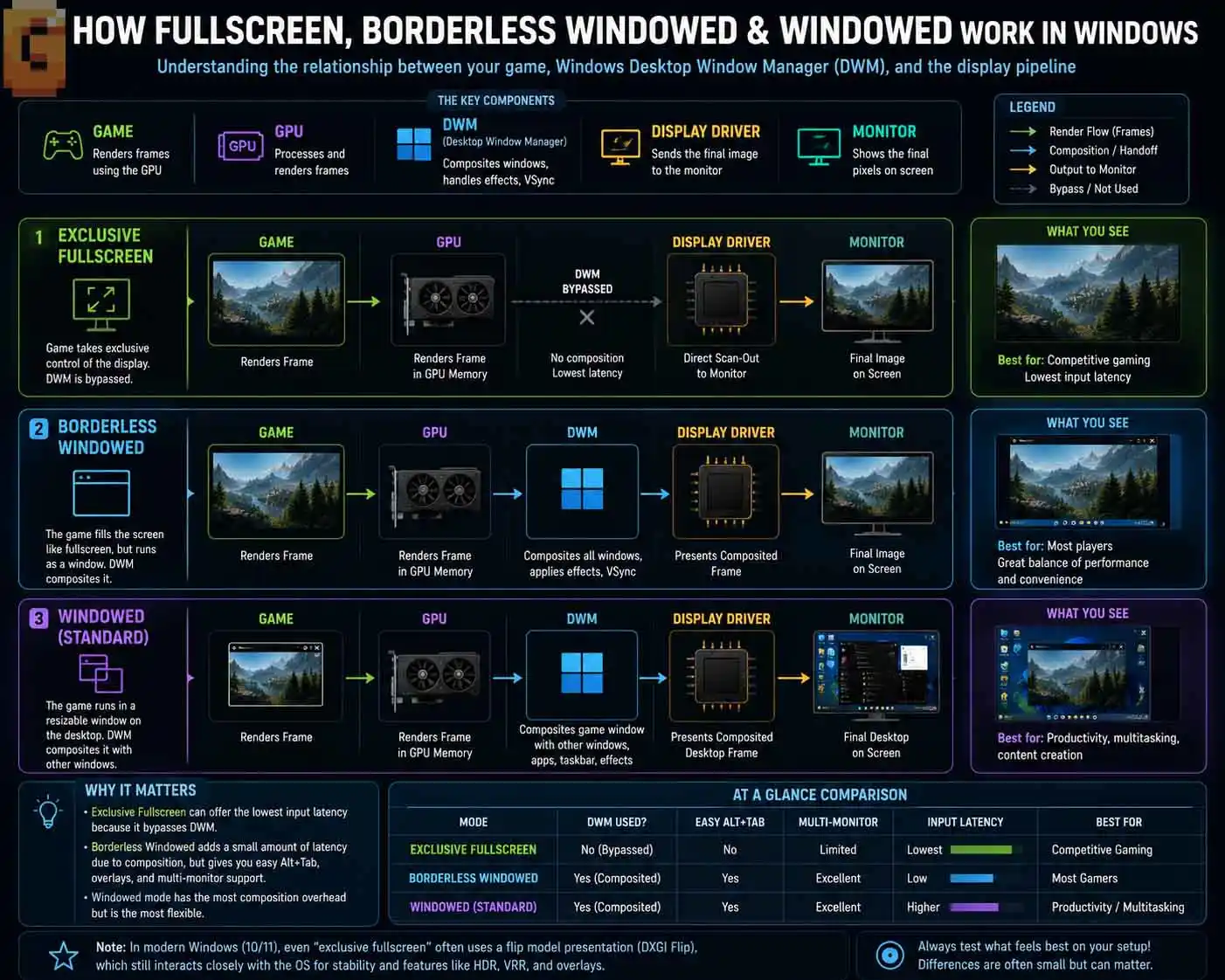
Instead of assuming every fullscreen mode bypasses Windows entirely, many modern titles use presentation methods that significantly reduce or eliminate the old performance gap. This is why different reviewers often report nearly identical frame rates between fullscreen and borderless windowed in newer DirectX 11, DirectX 12, and Vulkan games.
The old blanket statement that “fullscreen always gives more FPS” simply isn’t universally true anymore. The underlying reason is Windows’ DXGI flip presentation model, introduced in Windows 8 and now standard across DirectX 11, DirectX 12, and Vulkan titles. Instead of bypassing Windows’ compositor entirely, most modern games using flip presentation still route through Desktop Window Manager even in ‘exclusive’ fullscreen — which is why frame rate differences have largely disappeared between modes.
For the full picture of everything that happens before a frame reaches this presentation stage — from GPU draw calls to the frame buffer — see our breakdown of how video game frames are rendered.
Does Fullscreen Actually Give You Better FPS?
Usually, no. For many modern games, average FPS differences are either extremely small or effectively nonexistent. That’s because presentation technology has evolved considerably compared to Windows versions from many years ago.
However, this doesn’t mean fullscreen is pointless. The advantage has shifted away from frame rate and toward responsiveness. This distinction is important because many articles still focus almost entirely on FPS while ignoring the reason competitive players continue using exclusive fullscreen.
The One Thing Exclusive Fullscreen Still Wins: Input Latency
This is where exclusive fullscreen still matters. If your goal is the lowest possible delay between moving your mouse and seeing the result on screen, exclusive fullscreen generally remains the strongest option. That difference won’t matter equally for everyone.
For someone playing slow-paced strategy games, city builders, or turn-based RPGs, a few milliseconds are unlikely to change the experience.
For competitive shooters, rhythm games, fighting games, or any title where immediate response matters, reducing latency can still be worthwhile. This is why many esports players continue choosing exclusive fullscreen even when FPS remains nearly identical. Exclusive fullscreen is generally chosen today because it can reduce input latency, not because it consistently increases FPS.
What Is Windows Fullscreen Optimizations and Should You Disable It?
This is one of the most misunderstood Windows gaming features. Fullscreen Optimizations is designed to improve compatibility by allowing certain fullscreen games to behave more like borderless windowed applications while still presenting themselves as fullscreen. The goal is better Alt+Tab performance, smoother overlay support, and improved desktop integration.
Unfortunately, years of forum advice have created confusion. Some players automatically disable the feature for every game. Others leave it enabled without understanding what it changes. The correct answer isn’t universal.
If you frequently multitask, use overlays, or stream, leaving it enabled often makes sense.
If your only priority is the lowest possible latency in competitive gaming, disabling it may still be worth testing.
There is no single setting that’s objectively best for every game or every player. Windows Fullscreen Optimizations is a compatibility feature rather than a simple performance boost. Whether you should disable it depends on your priorities, not on outdated internet advice.
Should You Use Borderless If You Never Alt+Tab?
Probably not. This is one of the clearest practical decisions. If you never:
- switch to Discord
- browse while gaming
- stream
- use multiple monitors during gameplay
- or Alt+Tab regularly
then borderless loses many of its biggest advantages. In that situation, exclusive fullscreen becomes a very reasonable default because you aren’t giving up convenience that you never use. That’s exactly why some gamers continue choosing fullscreen today. Not because they expect dramatically higher FPS. Because they simply don’t benefit from borderless features.
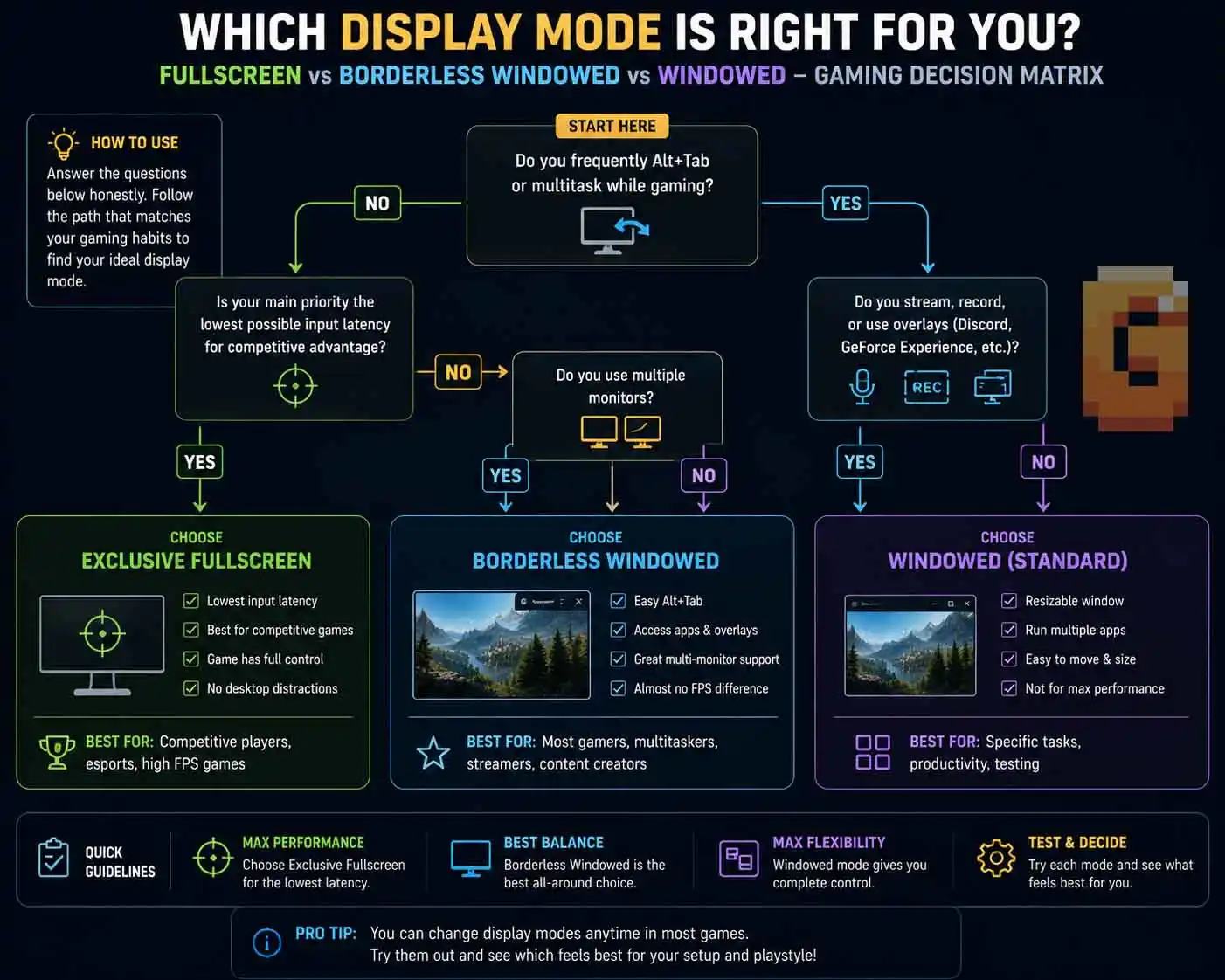
Competitive vs Casual Gaming: A Simple Decision Matrix
Instead of arguing over one “best” display mode, it’s easier to match the mode to your gaming style.
| Your Priority | Best Choice | Why |
|---|---|---|
| Competitive FPS games | Exclusive Fullscreen | Lowest possible input latency |
| Single-player games with frequent Alt+Tab | Borderless Windowed | Convenience with similar performance |
| Multi-monitor setup | Borderless Windowed | Easier switching between displays |
| Streaming and recording | Borderless Windowed | Better compatibility with desktop tools |
| Never multitask | Exclusive Fullscreen | No reason to sacrifice latency benefits |
| Testing or development | Windowed | Easy resizing and desktop interaction |
This simple approach is far more useful than declaring one mode universally superior.
What About G-SYNC and FreeSync?
Adaptive sync adds another layer to the discussion. Modern drivers support adaptive sync in more situations than they did years ago. However, some players still prefer exclusive fullscreen because it offers the most predictable behavior on certain hardware combinations. Exactly how your monitor behaves depends on several factors, including:
- monitor firmware
- GPU driver
- Windows version
- game engine
- display configuration
If everything is working correctly, many users won’t notice any difference between fullscreen and borderless.
Most modern G-Sync and FreeSync setups work correctly in both exclusive fullscreen and borderless windowed. If you notice adaptive sync dropping out or behaving inconsistently in borderless mode, switching to exclusive fullscreen is the first thing to try — some older monitors or specific driver combinations handle the two modes differently.
If you’re still working out whether adaptive sync is worth enabling in the first place, our guide on when to enable G-Sync covers the setup details and the scenarios where it helps most.
Why Old Gaming Advice Keeps Getting Repeated
A lot of PC gaming advice was completely correct when it was originally written. The problem is that Windows, graphics drivers, and game engines have changed dramatically.
Many sources were never updated. As a result, recommendations that made perfect sense years ago are still being copied today without explaining why modern systems behave differently. Understanding why something changed is far more valuable than memorizing old rules.
Practical Recommendations
If you’re still unsure, here’s an easy starting point.
Choose exclusive fullscreen if:
- you care about the lowest possible latency
- you rarely leave the game
- you mainly play competitive titles
- or you simply prefer a dedicated gaming session
Choose borderless windowed if:
- you frequently Alt+Tab
- use Discord constantly
- stream gameplay
- have multiple monitors
- or value convenience over shaving a few milliseconds
Choose windowed mode when you specifically need a resizable desktop window.
FAQ
Does fullscreen always give higher FPS?
No. Many modern games show little or no FPS difference between exclusive fullscreen and borderless windowed. The remaining advantage is often lower input latency instead of higher frame rates.
Is borderless windowed bad for gaming?
No. Borderless windowed is an excellent choice for most players who frequently multitask, use multiple monitors, or switch between applications.
Should I disable Windows Fullscreen Optimizations?
It depends. Competitive players may prefer testing with it disabled, while many casual gamers benefit from leaving it enabled for smoother desktop integration.
Why do esports players still use fullscreen?
Lower input latency remains the primary reason. Even when FPS is similar, reducing response delay can still matter in competitive games.
Is standard windowed mode recommended?
Usually not. Standard windowed mode is mainly useful for testing, development, or situations where you need a resizable desktop window.
Conclusion
The debate around fullscreen vs windowed vs borderless windowed is no longer just about frame rates. Modern Windows versions have narrowed the traditional FPS gap, making responsiveness the more meaningful difference.
Here’s the short version:
- Exclusive fullscreen is usually the better choice if you never multitask and want the lowest possible latency.
- Borderless windowed is ideal if convenience, fast Alt+Tab, and desktop integration matter more.
- Standard windowed mode is best reserved for specific workflows rather than everyday gaming.
The best display mode isn’t universal. It depends on how you actually use your PC.
References
Microsoft – Fullscreen Optimizations Documentation: https://devblogs.microsoft.com/directx/demystifying-full-screen-optimizations/
Digital Trends – Gaming display mode testing and analysis: https://www.digitaltrends.com/computing/settling-borderless-and-fullscreen-debate/
Blur Busters – Input latency and display technology resources: https://blurbusters.com